Recent Posts

Pages: [1] 2 3 ... 10
1

Top 5 features coming to Windows 11 PCs in the next 30 days

Windows 11 has been getting a lot of improvements and features lately. In June alone, Microsoft shipped its biggest Patch Tuesday of 2026, with the Low Latency Profile CPU boost, Shared Audio for Bluetooth headsets, Multi-App Camera support, and a two-character Windows Search threshold. And Microsoft is not slowing down.

In the next 30 days, five more practically useful features are heading to all Windows 11 PCs. These are coming first as an optional update in June itself, and will then reach everyone as part of the July 2026 Patch Tuesday update.


None of them requires a Copilot+ PC, and none of them are related to any AI subscription. We are talking about things like rolling back your PC if something breaks, a smarter way to pause updates, a quieter Widgets experience, a screen overlay for eye strain, and a long-overdue reliability fix for Bluetooth. Here is a closer look at all five.

#1 Windows 11 Widgets stop being annoying by default

If you have ever accidentally hovered over the Widgets button on the taskbar and watched the entire board slide open while you were trying to click something else, you know the frustration. Microsoft is finally fixing that. After years of feedback, Widgets will no longer open on hover by default. The taskbar badge behavior is also being toned down, with notification counts now minimized by default and badge colors adjusted to match your Windows accent color.


Apart from that, first-time users will land directly on the Widgets dashboard instead of the MSN feed. Microsoft has been working toward turning off the MSN feed and ads in Widgets by default, and this update takes that further by making the lock screen experience simpler, too. New users will see only a Weather widget on the lock screen. Currently, it is a crowded bunch of cards with mostly irrelevant information.


Dashboard icons will now show the count of unread alerts at a glance, and badges clear automatically once you leave a dashboard. You can still configure everything from within Widgets settings. Widgets in Windows 11 already open news links in the default browser instead of Edge, and now the full experience is turning quieter and less intrusive, which is what most users wanted from the beginning.

#2 Windows 11 lets you pause updates indefinitely with a new calendar

One of the most requested Windows features is finally arriving in a form that makes sense. Windows 11 is getting a calendar-based update pause system inside Settings, where you can pick an end date to pause updates for up to 35 days. You can also extend the pause by selecting a new end date and re-pause whenever you need to.


We have been covering this feature closely since Microsoft first started testing it. Microsoft confirmed earlier in 2026 that you can pause Windows 11 updates for as long as you want, ending the era of forced reboots. We also did a hands-on test of the new pause feature and found it to be a welcome departure from the five-week cap Windows 11 had before.

Back on April 13, we found that the company was planning to finally end forced Windows 11 updates with this approach. And recently, Microsoft itself said you should pause Windows 11 updates when you need to work, showing that Redmond has accepted users need more control. The new calendar picker in Windows Update is also a better UI.

#3 Point-in-time Restore rolls back your entire PC when things go wrong

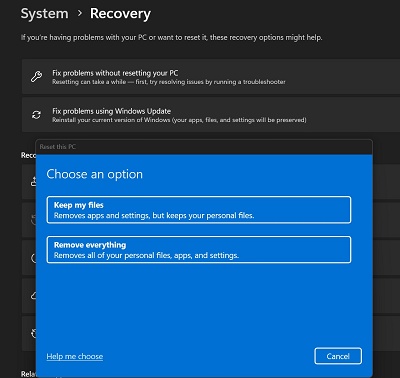
A bad Windows update, a misconfigured driver, or a broken app installation should not make you panic or lose hours to troubleshooting. Point-in-time Restore is a recovery feature Microsoft has been testing for months, and it is now making its way to all Windows 11 PCs. When turned on, Windows automatically creates restore points of your entire system, including apps, settings, and personal files, and keeps them for up to 72 hours. If something goes wrong, you can roll back to one of those snapshots from the recovery environment.


Available restore point frequencies

We tested Point-in-time Restore in Windows 11 back in November 2025 and called it one of the best features the OS has shipped without needing AI. Unlike the older System Restore, which only rolls back system files and registry settings, Point-in-time Restore captures everything on your OS volume, including your personal files. It uses Windows’ Volume Shadow Copy Service under the hood, creating block-level snapshots in the background without interrupting your work.


Once the feature comes to your PC, you can turn it on from Settings > System > Recovery. You can set how often restore points are created, anywhere from every 4 hours to every 24 hours, and how long they are kept. The feature works offline, so there is no dependency on the cloud, and of course, no subscription is required. For users who keep delaying Windows updates out of fear that something will break, this feature is the safety net that makes updating much less risky.


#4 Screen Tint gives users with eye strain a full-screen color overlay

For users who get headaches or eye strain after long hours on a PC, Windows 11 is adding a dedicated Screen Tint feature as part of a set of accessibility improvements. Screen Tint applies a full-screen color overlay to make the display easier to look at, and it’s different from Night Light, which adjusts just the color temperature to warm or cool. Screen Tint lets you control the color and intensity.


We covered Screen Tint when it first appeared in testing and found up to six preset colors, including Calm amber, which is similar to Night Light, along with blue, green and other tints. You can also use a custom color and adjust the intensity using a slider. People who wear tinted glasses to reduce photosensitivity or those sensitive to certain screen colors now have a software alternative built right into Windows, accessible from Settings > Accessibility.


Image Courtesy: WindowsLatest.com

The same update also improves the Magnifier. You can now type a specific zoom percentage directly into the Magnifier window and adjust it in defined increments, rather than having to drag a slider. The Magnifier bar also now has a settings menu, so you can change zoom increments without having to go to Windows Settings each time. For users who rely on these accessibility tools every day, that extra trip to Settings was never necessary, and it is good to see Microsoft agree.


#5 Bluetooth gets the biggest reliability sweep Windows 11 has shipped at once

Bluetooth reliability on Windows has been a recurring complaint for years. Microsoft pledged to make Bluetooth, audio, camera, and USB connections stable on Windows 11 earlier in 2026, and this upcoming update is the most concentrated delivery of those promises yet. In one update, Bluetooth is getting improvements across microphone sync, device compatibility, audio stability, connection reliability, and device management. It is rare to see this many Bluetooth fixes simultaneously.

The biggest new addition is microphone mute sync. When you press the mute button on your Bluetooth headset, Windows will now keep the mute state in sync between the audio mixer and the Hands-Free Profile. Before this fix, the mute indicator on your headset could fall out of sync with what Windows 11 understood about the mic state, which caused confusion in calls and meetings. Intel separately addressed Wi-Fi and Bluetooth coexistence issues in April, but the mute sync problem was always on Microsoft’s side of the stack.


On the device compatibility front, AirPods will appear faster in pairing mode, and the Beats Studio Pro headphones get improved microphone reliability, making iPhone users a little happier with a Windows PC.

Bluetooth LE Audio streaming, which Windows 11 added to support features like Shared Audio for two headphones, recovers more reliably after a connection is lost and starts playing audio faster when the microphone is also in use. Classic Bluetooth audio devices reconnect more quickly after Windows resumes from hibernation.

The Phone Link integration also gets smarter audio routing. When you dial an outgoing call from your phone paired to your PC, the audio now stays on the phone during ringing and only transfers to the PC after the call is answered on Windows. Previously, the audio could jump to the PC immediately, which was disorienting. Additionally, incoming calls from a paired phone will no longer ring on the PC when Do Not Disturb is turned on.


Other notable improvements coming to Windows 11 in a month


The address bar in File Explorer now handles paths with double backslashes and quotation marks, which fixes compatibility issues that tripped up power users and developers who copy-pasted paths.

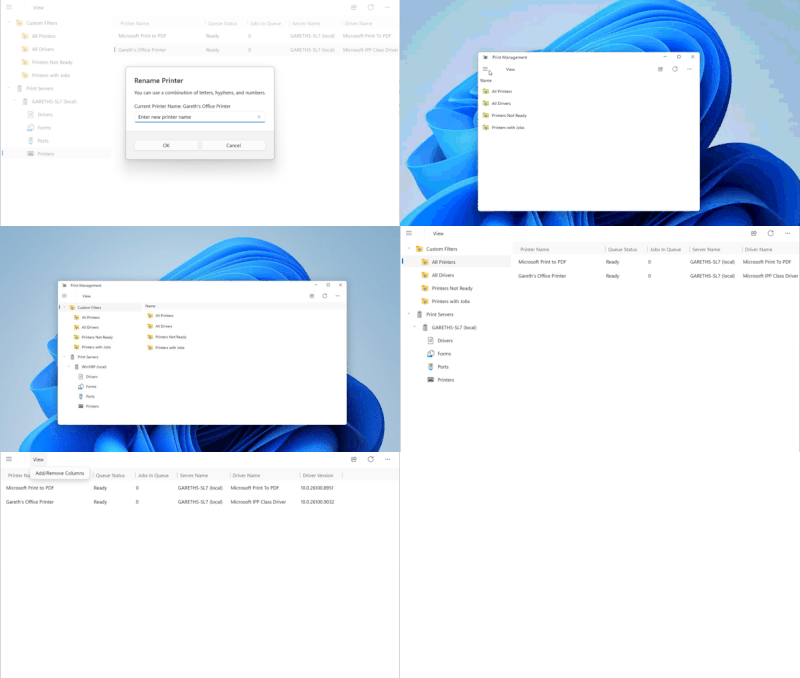
The printer setup experience also gets a useful upgrade, with new printer installations defaulting to Internet Printing Protocol instead of older driver-based methods, simplifying setup for most users.

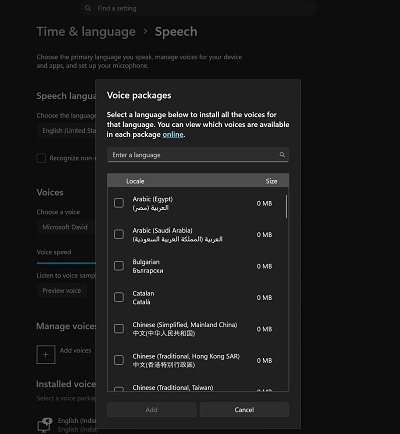
Voice access and voice typing on Copilot+ PCs get support for French, German, and Spanish, with real-time grammar correction, punctuation, and recognition error fixes as you speak. The touchpad right-click zone size is now customizable, with small, medium, and large options, which is handy on laptops where the bottom-right corner triggers right-clicks when you did not intend to.

What Windows Insiders are testing that has not reached your PC yet

While all five features above are heading to regular PCs through the upcoming June optional update and the July Patch Tuesday, Windows Insiders are testing an even longer list of changes that are still months away from general availability.

The most talked-about Insider exclusive right now is the movable taskbar, which lets you pin the taskbar to the top, left, or right side of the screen for the first time since Windows 11 launched. We tested it and also compared the Windows 11 taskbar with the Windows 10 taskbar, and the results are surprising, but Microsoft is still working through bugs before it rolls out to everyone.


There is also the redesigned Start menu with full customization controls that Insiders in the Experimental channel are testing, along with improvements to Windows Search that handle typos and partial words for apps, and a toggle to remove Bing results from Search.


Here is a longer list of 18 confirmed features coming to Windows 11 in 2026, and if the pace of the last few months is any indication, the list of things coming to regular PCs is only going to grow.

source
2
Anyone selling, donating, or recycling an old smartphone risks handing over years of personal data, from banking credentials to private photos, unless the device is wiped in a way that makes recovery impossible. Apple’s own security documentation confirms that a proper wipe “obliterates all the keys in effaceable storage and renders all user data cryptographically inaccessible.” Yet the gap between a quick factory reset and genuine data destruction is wider than most phone owners realize, and federal agencies already treat the distinction as a matter of policy.

Why a factory reset alone falls short of true data destruction
The standard factory reset available on both iPhones and Android phones is designed for convenience, not forensic-grade sanitization. On Apple devices, the reset process works by destroying the encryption key that protects stored files. According to Apple’s platform guide, fast wipe is achieved by erasing an effaceable key, which renders files “cryptographically inaccessible.” Because the underlying data still sits on the flash storage, the security of this approach depends entirely on the strength of the encryption and the completeness of key destruction. If the key is gone and the encryption was properly implemented, the remaining data is effectively gibberish.

Android devices follow a similar principle when encryption is active. Google provides factory reset instructions that walk users through the settings menu, but the effectiveness of that reset hinges on whether the phone’s storage was encrypted before the wipe. Modern Android phones ship with encryption enabled by default, yet older models, particularly those running versions prior to Android 6.0, did not always enforce encryption out of the box. A factory reset on an unencrypted device simply marks storage blocks as available without scrambling the underlying bits, leaving data exposed to anyone with basic forensic tools.

The hypothesis that a manufacturer factory reset without an explicit purge step retains recoverable data at higher rates than key destruction or physical destruction is consistent with the technical design of both platforms. When encryption keys are properly destroyed, the data becomes unreadable. When they are not, or when encryption was never active, residual information persists on the storage medium in a form that forensic imaging can detect.

How NIST and the IRS define when data is truly gone
The federal government does not leave data sanitization to guesswork. The National Institute of Standards and Technology published SP 800-88 Rev. 2, formally titled Guidelines for Media Sanitization, which carries DOI 10.6028/NIST.SP.800-88r2 and is available through the NIST Computer Security Resource Center. That document defines three escalating methods for removing data from storage media: Clear, Purge, and Destroy. Clear uses logical techniques such as overwriting. Purge applies physical or logical methods that make data recovery infeasible even with state-of-the-art laboratory techniques. Destroy renders the media itself unusable through disintegration, incineration, or similar means.

These categories are not academic abstractions. The Internal Revenue Service’s own media sanitization guidelines explicitly reference NIST SP 800-88, directing staff to follow its framework when disposing of devices that held taxpayer information. The fact that a revenue agency handling some of the most sensitive personal data in the country relies on this standard signals how seriously the federal government treats the difference between a casual reset and a verified purge.

NIST’s broader work on information security and workforce skills, including initiatives like the NICE program, reinforces the idea that secure handling of digital media is a professional competency, not an optional extra. Within NIST’s Information Technology Laboratory, detailed guidance on cryptography and storage security reflects the same principle: when sensitive data is involved, organizations must be able to demonstrate that retired devices no longer pose a confidentiality risk, a theme echoed across the lab’s ITL resources.

For individual phone owners, the practical takeaway is straightforward. Apple’s wipe process, which destroys the effaceable encryption key, aligns closely with the Purge concept in NIST’s framework, because it makes data recovery infeasible without the key. Apple’s deployment documentation states that wiping “obliterates all the keys in effaceable storage and renders all user data cryptographically inaccessible.” Android’s factory reset achieves a comparable result only when full-disk or file-based encryption was active before the reset was triggered. Without that precondition, the reset falls closer to NIST’s Clear category, which offers a lower assurance level.

Gaps in the evidence and what phone owners should do first
No publicly available controlled study from NIST or another primary research body has published forensic recovery rates comparing consumer phones wiped via factory reset against those subjected to explicit Purge or Destroy procedures. The absence of that data means the exact scale of residual risk on post-reset consumer devices is not precisely quantified by an authoritative source. Independent security researchers have demonstrated data recovery from unencrypted Android phones after factory resets, but those findings have not been consolidated into a single peer-reviewed benchmark that NIST or a comparable institution has endorsed.

A second gap involves older Android devices still circulating through resale markets and donation programs. No official statement from Google quantifies how many active Android phones lack default encryption, and no Apple or Google disclosure addresses the residual risk when users skip encryption setup before performing a reset. That silence leaves phone owners without a clear way to verify whether their specific device model and software version will produce a forensically clean wipe.

For anyone preparing to part with an old phone, the safest approach is to treat a factory reset as one step in a multi-layered process rather than a complete solution. Before initiating the reset, users should confirm that device encryption is enabled in the settings menu and, if necessary, turn it on and allow the phone to complete the encryption process. Only after encryption is active should the owner trigger the factory reset or wipe option provided by the operating system.

Once the reset is complete, additional precautions can further reduce risk. Removing SIM and memory cards ensures that contact lists, text messages, and locally stored media are not inadvertently passed along with the handset. For devices that will not be reused-such as those with broken screens, swollen batteries, or other hardware failures-physical destruction of the storage chip, following the spirit of NIST’s Destroy category, offers the highest level of assurance. While most consumers lack access to specialized shredders, simply retaining nonfunctional phones rather than discarding them in general recycling streams avoids placing intact storage media into unknown hands.

Consumers should also be skeptical of third-party “secure erase” apps that promise to overwrite phone storage. On modern, encrypted smartphones, the operating system and hardware manage flash memory in complex ways, and poorly designed tools can provide a false sense of security without actually improving on the built-in wipe mechanisms. Relying on the platform’s native encryption and reset tools, combined with physical control over the device’s final destination, is more consistent with the layered approach reflected in federal sanitization standards.

The lack of definitive public metrics on post-reset data recovery should not be confused with a lack of risk. Until large-scale, methodologically rigorous studies emerge, phone owners must navigate disposal decisions using the best available technical guidance: enable encryption, use the manufacturer’s wipe function, remove removable media, and consider physical destruction for devices that will not be reused. Those steps mirror the escalating Clear, Purge, and Destroy concepts that federal agencies apply to their own hardware, and they offer ordinary users a practical way to keep old phones from becoming silent leaks of their digital lives.
Via MSN | Story and Pic
3
General Discussion / HDDs are a better value and still worth buying in 2026
« Last post by riso on June 23, 2026, 09:51:41 AM »
Despite being slower and less efficient than SSDs, hard drives are still worth buying in 2026. Demand and prices are rising as AI companies and consumers look to them as cheaper alternatives. Still, HDDs give you far more bang for your buck when it comes to capacity.

The cheapest 8TB SSD we could find was the Team Group T-FORCE GA PRO at $1,009.99 (equal to $126.25/TB). Compare that to the best-selling HDD on the same site, the Seagate IronWolf, which sells for $299.99 ($37.50/TB) and has much higher ratings. In fact, the only Seagate HDDs to be more expensive than an 8TB SSD were the 28GB and 32 GB options, meaning you could buy an HDD that's triple or quadruple the size for around the same price. That said, HHDs aren't really a replacement for those your typical USB drives and SD cards given their capacity and price.
Via MSN | Pic: Close-up of a disassembled open hard disk drive HDD of a computer
© Windcolors/Shutterstock
4
General Discussion / Don't buy USB drives or SD cards in 2026 - here's why
« Last post by riso on June 23, 2026, 09:43:10 AM »
The ongoing chip shortage driven by AI data centers is causing everyday tech to skyrocket in price, as manufacturers prioritize AI-capable hardware over the kinds used in things like PCs, smartphones, and gaming consoles. In recent months, products like the PlayStation 5 and Samsung Galaxy tablets have received price hikes. Not even USB drives and SD cards, storage options known for their affordability and consistent price drops, have been spared.

In just one year, USB drive and SD card prices have jumped dramatically. PCWorld and Tom's Hardware each compared the current prices for specific devices to their 2025 peak and found significant increases across all drive types and capacities, in some cases doubling or even tripling. These have gone up further since those reports were published. As an example, a 512GB SanDisk Extreme PRO SD Card that cost $60 in 2025 had risen to around $107 when Tom's Hardware ran its story in April; as of this writing in June 2026, the same product is now $150 on Amazon. By the time you're reading this, prices may have jumped again.

Price hikes haven't necessarily stopped consumers, as people are buying Steam Decks for almost $1,000. Still, it's hard to recommend purchasing USB drives or SD cards at their current prices. While they may be the only storage expansion options in certain cases (the Nintendo Switch 2 uses expensive microSD cards), for the most part, an HDD (hard drive disk) or a cloud service is a smarter financial choice in 2026.
Via MSN
5
Windows 11 / Windows 11 learns to update faster and becomes more user-friendly
« Last post by riso on June 20, 2026, 11:13:38 AM »
Microsoft has introduced a test build of Windows 11 numbered 26300.8687, TechSpot reports.

The update improves the installation process and enhances built-in multimedia tools.

The key change is a new update mechanism: all components—including security patches, drivers, .NET updates, and other system elements—are now bundled into a single installation process. This allows users to complete updates with just one restart instead of multiple reboots, significantly reducing overall update time.

The built-in Media Player has also received new features. Subtitle settings are now integrated with system accessibility options, a media library indexing indicator has been added, and file recognition has become more accurate, reducing errors in format detection.

In addition, Windows Search has been improved. The new version handles queries with typos more effectively, making it faster to find files, apps, and system functions.

The update is currently available only to participants in the preview testing programme. A general release date for this Windows 11 build has not yet been announced.

Via Caliber.Az
6
Microsoft announced five new Windows Insider Preview builds today and some expected news about Windows 11 version 26H2.

“We have new releases today with builds across Beta and Experimental, including Windows 11 version 26H2 for Experimental,” Microsoft’s Stephen Lines writes in the announcement post. “Devices already enrolled in the Experimental channel will begin seeing their versioning updated to version 26H2 under Settings > System > About (and winver). If you are in the Beta channel and would like to switch to the Experimental, you can easily do so under Settings > Windows Update > Windows Insider Program. Remember, you can easily switch “back to Beta at any time, without having to do a full Windows reinstall.”

This isn’t clear, but since Windows 11 versions 24H2 and 25H2 are both supported currently and will be upgraded to version 26H2 this October-ish, I assume what he means that is that those with a PC in Experimental for 24H2 or 25H2 will soon transition to 26H2. That said, there’s also a Future Platforms sub-channel for Experimental, so I could be wrong on that count. I will update a few PCs and see what happens.

If you have a Snapdragon X2-based PC running Windows 11 on Arm, you’re running 26H1 and Microsoft previously revealed that you will not be updated to 26H2; instead, you will eventually “have a path to update to a future Windows release,” which may or may not be called Windows 12. Microsoft isn’t saying right now. Confused? Welcome, friend.

As for the new builds, the following is now available:

Beta (25H2): Build 26220.8690. There are improvements to the reliability of Start, Taskbar, Settings (Apps > Startup), and virtualization.
Experimental (24H2/25H2?): Build 26300.8697. The versioning will change to 26H2 and there are improvements to the File Explorer Copy dialog in Dark mode, the reliability of Start, Taskbar, Settings (Apps > Startup), and virtualization.
Beta (26H1): Build 28020.2308. This update includes a small number of minor bug fixes and improvements, including an improvement to the reliability of the in-box HD Audio driver.
Experimental (26H1): Build 28120.2315. This update includes a small number of minor bug fixes and improvements, including an improvement to the reliability of the in-box HD Audio driver and the responsiveness of captions.
Experimental (Future Platforms, Including Canary 29600 series): Build 29613.1000. This update includes further improvements to Settings > System > Sounds based on feedback and the input and output audio properties page for devices in Settings so that they now include jack information.
Via Thurrot.com Tagged with 25H2 26H1 26H2 Windows Insider Program
7
The phone's eighth year of software support isn't just a kindness. More people all over the world are using older iPhone models.


The iPhone 11, originally released in 2019, will be receiving the update to iOS 27 this fall.
Angela Lang/CNET
Apple's iOS 27, unveiled at WWDC 2026, will be coming to iPhone models as old as the iPhone 11 series that launched in 2019. While eight years of software support is unprecedented, it's also potentially more necessary than ever.

Even though the iPhone 11 is unlikely to support any of the newer Apple Intelligence-related features, the additional year of fresh software support comes amid two important moments in the tech industry.

The most obvious has been the overall increased cost of electronics, attributed to factors like the ongoing RAM shortage and concerns over rising tariffs over the past few years. We've seen several phone companies push phone prices up by as much as $200 between their 2025 and 2026 models -- in some cases, phone prices have even increased after their initial release.

But perhaps less publicized is the second-hand market, where older iPhone models remain easy to obtain. The iPhone 11 with 256GB of space costs $209 as of this writing on Amazon. In a recent CNET poll surveying 2,600 adults, over 48% said they have considered purchasing a refurbished device, citing cost-effectiveness and the high cost of new electronics as the primary motivators.

Both factors point to a trend that people are aiming to keep their phones longer than ever and are willing to make use of devices that aren't the latest and greatest but are perfectly capable of their overall needs. I've contacted Apple asking about how many iPhone 11 users are out there (an answer I'm not expecting to get), but there's other evidence that people are using older iPhones and can use the additional software support.

Apple has reasons to take care of customers on older iPhones

Apple's iPhone line typically tops the lists for bestselling smartphones around the world, and as such, it's not too surprising to hear that Apple's also one of the biggest sellers of refurbished phones. According to an October 2025 report from analytics firm Counterpoint Research, the iPhone 12, iPhone 13 and iPhone 14 all drove refurbished sales growth in Africa, India and Southeast Asia.

In markets more like the US, the refurbished market had flatter growth between 2024 and 2025, with the report citing longer replacement cycles and rising costs driving customers to delay upgrading.

With fewer people upgrading, Apple may be taking a closer look at ensuring customers who are still using older devices aren't left in a lurch with devices that are harder to use. In January of this year, iPhone models running iOS 12 and later received a small update that helped ensure that iMessage and FaceTime would still function on models as old as the iPhone 5S from 2013. And even when Apple does sunset iOS updates for an iPhone, the company historically provides several additional years of security updates.


The only way to get a smaller iPhone 13 Mini is to buy one used, and in some cases, that's exactly
what people are doing. | Sarah Tew/CNET
Supporting older iPhone models can help stem people from moving to Android

As phone prices increase, Apple's ongoing support of older iPhone models could be a defensive strategy. While Samsung, Motorola and Google have a plethora of new Android phones that sell for under $500, Apple's entry-level price for a new phone is now $600 (the iPhone 17E released earlier this year).

Making 2019's iPhone 11 feel a little fresher with iOS 27 provides an additional reason for an iPhone user to stick around in Apple's ecosystem without needing to consider a switch to Android where they might get a phone with a bigger battery or newer camera for less money than a new iPhone.

Giving reasons to stay on an iPhone is more important since Apple's also being driven (largely by the European Union) to support more open technologies that put the iPhone and Android phones on a more level playing field. This includes RCS text messaging that makes many iMessage-like features work across iPhone and Android, and eSIM features that make it easier to transfer your phone number from an iPhone to Android.

Apple providing a currently industry-leading eight years of support to its iPhone 11 is a small feather in its cap that can be touted to one-up Android until similar commitments are made by companies like Samsung, Google and Motorola.

source
8
Take to the virtual skies without having to download the desktop app.


You can fly just about anywhere on Earth with the Google Earth Flight Simulator.
Google Earth
One of the hidden features in the Google Earth desktop app is a fun little flight simulator that lets you fly all over the Earth using maps generated by the app. And Google has just announced that the flight simulator is also now available in your web browser of choice for all to enjoy.

The addition of the game is part of a larger push by Google to add pro-level features to the website interface, so you can skip installing the desktop app. Some of those features include elevation profiles, new import types, extra data layers and the flight simulator.

Most of the above features are for professional and hobbyist use, but the flight simulator is just there for fun. It's been around since 2007 in the desktop app, and Friday marks its first appearance in the website version of Google Earth.


It's not as in-depth as some other flight sims, but you can't argue with the breadth of places where
you can fly. | Google Earth
How to play the flight simulator in Google Earth

It doesn't take a lot of effort to get into the game. Start by following this link to the Google Earth website and clicking the Explore Earth button in the top right corner. Use the search bar to load the point on Earth where you would like to fly. Finally, click Tools, and the flight simulator is the last option on the list.

The controls aren't shown in the game, but you can find them on Google's developer website. You can choose to use the mouse or arrow keys to control the pitch and roll of the plane. The Page Up and Page Down buttons increase and decrease thrust, respectively. But be careful -- it is quite easy to lose control of the airplane, leading to a topsy-turvy browser screen. The game ends if you crash the airplane, but Google lets you try again as often as you want.

It's not nearly as in-depth with its gameplay as something like Microsoft Flight Simulator or the Ace Combat series. However, Google Earth's flight simulator has access to the entire Google Earth database, so you can fly to almost anywhere on Earth and check out various landmarks.

There aren't any missions, achievements or other notable progress that you can make, but if you ever wanted to thread an airplane under the Golden Gate Bridge, now is your chance.

source
9
Windows hides advanced CPU boost settings to balance performance, power consumption, and heat, more effectively. They can be easily enabled.

Windows enthusiasts often look for ways to extract as much performance out of their systems as possible, and it's often the case that they try and do so while trying to minimize the heat and power consumption. This is especially relevant in the case of mobile Windows PCs since laptops and notebooks tend to get hot and management of that heat and power is harder in such a form factor.

As such users often turn to techniques like under-volting which can be used to squeeze out the maximum capabilities of a chip while also maintaining lowered power levels. There are official apps from AMD and Intel with the likes of Ryzen Master and XTU (Extreme Tuning Utility). While these are quite handy, most enthusiasts probably prefer to dig into the BIOS and play around with settings there like Curve Optimizer on Ryzen, which lets users set various frequency-voltage scaling values. These are essentially called P-States.

If you are not familiar with them, Processor Power Management is done through Advanced Configuration and Power Interface (ACPI) P-states and C-states. While P-states or performance pwoer states handle CPU voltage-frequency scaling, C-states deal with CPU sleep states so that some of the CPU functions, which are not necessary at that moment, can be disabled. The P-states and C-states work together to make the processor run more efficiently. It helps the OS and apps determine which cores can be parked and which should be boosted.

Of course not every user is an enthusiast or knows the technicalities and integrities of how things like overclocking or undervolting work. Thankfully for them Windows itself offers something pretty cool, though it is hidden by default on all systems.

By default, Windows only has two P-States, "Minimum Processor State" and "Maximum Processor State." However, this can be changed with a Registry trick to expand the options under a secret "Processor performance boost mode" dropdown. This essentially enables the HWP or hardware P-States available on a device, and these are not controlled just by the OS itself as the underlying hardware gets involved too.

In total there are five Processor Performance Boost Mode profiles that control how Windows requests and allows CPU turbo/boost behavior under the different power policies. They are:

Disabled: In this mode, processor boosting is effectively turned off. The CPU will avoid entering turbo or boost frequencies and instead operate closer to its base frequency ceiling. This can significantly reduce power consumption and heat output, but at the cost of reduced burst performance and responsiveness in short workloads.

Enabled: This is the standard behavior where boost functionality is allowed under normal conditions. The processor can opportunistically increase frequency when workload demands it, balancing performance gains with power and thermal constraints as managed by the system.

Aggressive: Aggressive mode favors performance more heavily, allowing the CPU to enter higher boost states more readily and sustain them longer. This should in theory improve responsiveness under bursty or heavy workloads but increases power draw and thermal output compared to the default enabled behavior.

Efficient Enabled: This mode still allows boosting, but with a stronger bias toward energy efficiency. The system attempts to use boost more selectively, avoiding unnecessary frequency spikes when the performance gain is marginal.

Efficient Aggressive: This is a hybrid approach where boost is still performance-responsive, but the system continuously weighs efficiency more heavily than in Aggressive mode. It aims to deliver noticeable performance improvements while reducing wasted power in less demanding scenarios.

Here's how to enable the Processor performance boost mode:

1️⃣ Open Registry Editor: Press Win+R, type regedit, and click OK.

2️⃣ Go to:

HKLM\SYSTEM\CurrentControlSet\Control\Power\PowerSettings\54533251-82be-4824-96c1-47b60b740d00\be337238-0d82-4146-a960-4f3749d470c7


(where HKLM stands for HKEY_LOCAL_MACHINE_)

3️⃣ Modify the value of Attributes from 1 to 2 (you can find modify option by right-clicking)


After that, exit Registry, you should now be able to see the new "Processor performance boost mode" dropdown menu:


As you can see there are now five new P-States or CPPC states or power profile available that help define the boost mode processor setting on your PC.


Wrapping it up here's a quick run-down of the settings as defined by Microsoft itself.


source
10
A wide range of bugs and problems are being reported online by users including blue screening, freezing, BitLocker lockout, OneDrive access fails.

Microsoft released Windows 11 KB5094126 and KB5093998 last week as the latest Patch Tuesday updates. Following that the company also published the accompanying dynamic updates under KB5094149, KB5095971, and KB5094156.

While Microsoft has so far not acknowledged any major problems with the release, some users online are running into issues. These range from OneDrive and Dropbox access issues, BitLocker recovery lockouts, to blue screens and BSODs.

The most common one seems to be happening with HP systems wherein affected users say they hit 0xc0430001 BSOD (blue screen of death) error code after the KB5094126 update. We wonder if this could be related to the recent bug we covered on HP devices wherein the ongoing Secure Boot certificate updates are leading to similar issues.

While we are not certain, users affected by this issue likely need to ensure that the boot.stl file is included on the installation media (such as a USB installer or ISO), if the above-mentioned dynamic updates are deployed. If this file is missing, computers may fail to boot from the installation media and could display the error 0xc0430001. This STL file is used by Secure Boot to verify that the boot files are trusted, so it must match the same Windows version and system architecture.

To ensure the file is included, Microsoft recommends using the Update WinPE script, which automatically updates the image and handles the required files. Alternatively, you can manually copy the boot.stl file from the Windows\Boot\EFI folder on a Windows device and place it in the matching folder on your installation media before deploying the updated image.

Aside from blue screening some users also note their systems have been freezing following the update. This could be happening to Lenovo PCs specifically.

In the case of the OneDrive and Dropbox access issues, a user figured out that there could be a conflict with UAC. He explained: "Okay, so I did some digging, and in our environment KB5094126 breaks OneDrive and Dropbox in Explorer. I went through all our GPOs and found out that the combination of disabling UAC and having my user being a local admin breaks OneDrive in Explorer. ... If I enable UAC again, then it works, even with KB5094126 still installed."

Hopefully, Microsoft will look into these issues.

source
Pages: [1] 2 3 ... 10