Recent Posts

Pages: 1 ... 4 5 [6] 7 8 ... 10
51
Social Media / How EU Regulators Might Change TikTok
« Last post by javajolt on February 10, 2026, 06:57:55 AM »
European regulators say that TikTok is too "addictive," and it could have worldwide implications.


Credit: Ian Moore/Lifehacker/Adobe Stock
If you've ever joined me in the misfortune of downloading TikTok, you've probably spent at least one evening mindlessly scrolling until two or three in the morning, not even looking for anything in particular to watch. According to the EU, that needs to change, as the region has preliminarily determined that the "addictive" app is in violation of its Digital Services Act.

The decision came on Feb. 5 and followed an investigation from the European Commission into the effects that features including infinite scrolling, autoplay, push notifications, and the fabled TikTok algorithm have on the minds of users. According to the commission's findings, "TikTok did not adequately assess how these addictive features could harm the physical and mental wellbeing of its users, including minors and vulnerable adults." What will follow is likely a lengthy legal battle that could end up with the app having to either change how it operates and/or pay a hefty fine. And while it sounds like the effects would be limited to Europe, they could have global ramifications. Here's what's going on with the state of TikTok in Europe, and what you need to know about what comes next.

What is the Digital Services Act, and how did TikTok break it?

The EU's Digital Services Act started being enforced in 2022, and generally focuses on regulating everyday online platforms, including marketplaces and social media apps. As TikTok is both of these in one, it falls under the act's scrutiny, although it might not be the TikTok you're thinking of. Specifically, the target here would be original TikTok owners ByteDance, rather than the new ownership for the American version of the app. That's because ByteDance continues to operate TikTok outside of the United States, although Americans might still see some fallout from the EU's regulation.

The Digital Services Act's main focuses are on increased transparency, the ability to fight content moderation decisions, protections for minors, and most relevant in this case, non-algorithmic feeds and dark patterns. The EU's investigation into the app began in 2024, with regulators being concerned about the app encouraging a "rabbit hole effect" among viewers, as well as how secure the app might be for minors. According to the investigation's preliminary findings, the app is "constantly 'rewarding' users with new content," sourcing videos that "fuel the urge to keep scrolling and shift the brain of users into 'autopilot mode.'"

The regulators bring up scientific research to back up their claims, although specific papers are not linked. I've reached out to the European Commission for comment and will update this post when I hear back. Whatever the EU's sources, however, there is no shortage of research supporting this claim. The NIH has previously "identified key addiction-related factors" in the app, and a number of universities have found that TikTok's "seamless experience" and "reward pattern" can encourage reckless engagement. Scientists have compared the thrill of pulling up a new video to gambling, as the variable quality of the surfaced content leaves viewers seeking the next big hit, similar to a slot machine.

According to the EU, "TikTok disregarded important indicators of compulsive use of the app," specifically regarding nighttime use from minors, as well as users frequently coming back to the app after closing it. While the Commission does acknowledge the app's existing screen time management and parental control features, the organization also argues that these aren't enough.

Will TikTok get rid of infinite scrolling?

According to the European Commission's investigation, TikTok's current tools for combatting the "rabbit hole effect" need to be changed. The regulators say that the app's current time management tools "are easy to dismiss and introduce limited friction," which reduces their effectiveness, while "parental controls may not be effective because they require additional time and skills from parents to introduce the controls."

Regulators say that, if their findings are confirmed, the app must take more direct measures by changing how it operates. Examples for how to achieve this include "disabling features such as 'infinite scroll' over time" and "adapting its recommender system," aka algorithm. In other words, regulators are suggesting that TikTok get rid of its bread and butter. In addition, the Commission also brings up the possibility of implementing "screen time breaks," especially "during the night."

Those would be some pretty major changes, but it's worth noting that all of this is still preliminary, which means it will be a while before users see any changes stemming from this regulation. As part of the process, TikTok may now defend itself, examining the Commission's investigation files and replying to its findings. No timeline is given here, meaning this could drag out for a good while. For instance, Apple is still fighting with the EU over supposed Digital Markets Act violations, while Meta only recently resolved a similar action from 2024.

That means any TikTok users in the EU who are worried about losing access to key features needn't worry quite yet. However, if TikTok is found guilty of violating the Digital Services Act, it could face a fine of up to 6% of its "worldwide annual turnover," although this is up to the discretion of regulators. That would, however, add up to billions of dollars, and continuing to act in violation of the act rather than making changes could result in further fines.

On TikTok's end, the app told The Financial Times that "The Commission's preliminary findings present a categorically false and entirely meritless depiction of our platform," and that ByteDance will "take whatever steps are necessary" to fight the decision. I've reached out to TikTok's European ownership, and will update this post when I hear back.

How will this affect the U.S.?

While U.S.-based readers might think that their apps will remain clear from any EU regulatory changes, that may not be the case. Designing different products for different sections of the market takes time and money, and that's time TikTok might not be willing to spend. For instance, Apple's global move to USB-C in its products stemmed from European regulation as well.

Granted, Apple is owned by the same parent companies worldwide, so it is possible TikTok's new U.S. ownership might not be affected from changes elsewhere. However, it's worth noting that one of the EU's bigger issues is with TikTok's algorithm, or "recommender system," which the U.S. ownership currently licenses from Bytedance rather than owning outright. Any changes made overseas could bleed their way into our app on this side of the pond as well, especially as U.S. TikTok does maintain some parity with global TikTok, allowing American viewers to watch videos from the more than 200 million users in Europe, in addition to other areas around the world.

That said, the European Commission's early calls for TikTok to change its operations are far from finalized. Even if TikTok is found guilty, it will likely enter a long back-and-forth while attempting to meet the Digital Services Act's requirements, and the solution the company and regulators land on could end up looking less severe than what the Commission suggested in yesterday's press release (I imagine TikTok will fight hard for infinite scroll). For instance, Google is still working with the EU on the specifics of ensuring its services comply with the DMA, a process that began in 2023 and is still being fine-tuned.

How to turn on TikTok's screen time management and parental controls

From a personal perspective, I do think the EU is onto something here. I could certainly use some reminders to avoid getting sucked into a TikTok rabbit hole, especially late at night. While it might be some time until any regulation affects the TikTok app, and we don't yet know if features like infinite scroll will still be in place (although it's worth noting that Instagram Reels has not been targeted on this front) once the dust settles, here's how to take advantage of TikTok's current screen time and algorithm management features.

First, algorithmic control. This is a big part of the EU's case against TikTok, but there do currently exist a few ways to control what pops up on your feed. While the default For You page leaves you at the app's whims, there are three other feeds you can access by swiping right after opening the app. The first, Friends, shows you videos from your friends or from suggested accounts. The second, Following, shows you videos from accounts you follow. Pretty self-explanatory. The third one, though, needs to be turned on.

Called STEM, this feed only shows you educational videos about science, technology, engineering, and mathematics. To turn on the STEM feed, tap your profile icon at the bottom right of the app, then hit the three-lined menu icon in the top right corner. Navigate to Settings and privacy > Content preferences and toggle on STEM feed. This won't get rid of any of your other feeds, but it'll now be an option you can swipe to on the main menu.

Next, screen time management and parental controls. There are a number of options for each of these, with screen time management living under Settings and privacy > Time and well-being and parental controls under Settings and privacy > Family Pairing.

The Time and well-being section will show you show you your daily average screen time over the last week alongside some meditation-related activities, but the real crux of the controls are in the Screen time button, which sits right above your average screen time graph. Here, you can set daily limits, sleep hours, and reminders to take breaks, although like the European Commissions says, there are easily dismissed.

Family Pairing is a bit more powerful, although not being a parent, it's something I haven't toyed around with. It lets you see your child's screen time and set limits they can't dismiss, as well as restrict who they can message and what their privacy and safety settings are. For a more detailed guide, click here.

Finally, even if you don't set any screen time limits and stick purely to your For You feed, there is some fine tuning you can do. Under Settings and privacy, tap Content preferences. From here, you can set the app to filer out videos or posts that contain that word in any text-based fields, tell the algorithm how interested you are in certain topics, mute specific accounts, or even refresh your For You feed to have the algorithm start over fresh. You can also turn on Restricted mode, which will hide content that TikTok deems as not "comfortable for all audiences."

What are the best TikTok alternatives, and how do I move?

If those controls still aren't enough for you, or the idea of regulators changing how TikTok works isn't what you're looking for, there are now a sizable number of TikTok alternatives you can try instead. Instagram Reels is the obvious one, although a popular recent choice is Upscrolled, which promises "every post has a fair chance to be seen," something that's been encouraging to users put off by the TikTok algorithm. An older alternative is RedNote, which is run by Chinese developer Xingyin Information Technology. It gained some popularity during early TikTok ban scares, although I'll admit I haven't heard of it as much recently.

source
52
Social Media / How EU Regulators Might Change TikTok
« Last post by javajolt on February 10, 2026, 06:21:59 AM »
European regulators say that TikTok is too "addictive," and it could have worldwide implications.


Credit: Ian Moore/Lifehacker/Adobe Stock
If you've ever joined me in the misfortune of downloading TikTok, you've probably spent at least one evening mindlessly scrolling until two or three in the morning, not even looking for anything in particular to watch. According to the EU, that needs to change, as the region has preliminarily determined that the "addictive" app is in violation of its Digital Services Act.

The decision came on Feb. 5 and followed an investigation from the European Commission into the effects that features including infinite scrolling, autoplay, push notifications, and the fabled TikTok algorithm have on the minds of users. According to the commission's findings, "TikTok did not adequately assess how these addictive features could harm the physical and mental wellbeing of its users, including minors and vulnerable adults." What will follow is likely a lengthy legal battle that could end up with the app having to either change how it operates and/or pay a hefty fine. And while it sounds like the effects would be limited to Europe, they could have global ramifications. Here's what's going on with the state of TikTok in Europe, and what you need to know about what comes next.

What is the Digital Services Act, and how did TikTok break it?

The EU's Digital Services Act started being enforced in 2022, and generally focuses on regulating everyday online platforms, including marketplaces and social media apps. As TikTok is both of these in one, it falls under the act's scrutiny, although it might not be the TikTok you're thinking of. Specifically, the target here would be original TikTok owners ByteDance, rather than the new ownership for the American version of the app. That's because ByteDance continues to operate TikTok outside of the United States, although Americans might still see some fallout from the EU's regulation.

The Digital Services Act's main focuses are on increased transparency, the ability to fight content moderation decisions, protections for minors, and most relevant in this case, non-algorithmic feeds and dark patterns. The EU's investigation into the app began in 2024, with regulators being concerned about the app encouraging a "rabbit hole effect" among viewers, as well as how secure the app might be for minors. According to the investigation's preliminary findings, the app is "constantly 'rewarding' users with new content," sourcing videos that "fuel the urge to keep scrolling and shift the brain of users into 'autopilot mode.'"

The regulators bring up scientific research to back up their claims, although specific papers are not linked. I've reached out to the European Commission for comment and will update this post when I hear back. Whatever the EU's sources, however, there is no shortage of research supporting this claim. The NIH has previously "identified key addiction-related factors" in the app, and a number of universities have found that TikTok's "seamless experience" and "reward pattern" can encourage reckless engagement. Scientists have compared the thrill of pulling up a new video to gambling, as the variable quality of the surfaced content leaves viewers seeking the next big hit, similar to a slot machine.

According to the EU, "TikTok disregarded important indicators of compulsive use of the app," specifically regarding nighttime use from minors, as well as users frequently coming back to the app after closing it. While the Commission does acknowledge the app's existing screen time management and parental control features, the organization also argues that these aren't enough.

Will TikTok get rid of infinite scrolling?

According to the European Commission's investigation, TikTok's current tools for combatting the "rabbit hole effect" need to be changed. The regulators say that the app's current time management tools "are easy to dismiss and introduce limited friction," which reduces their effectiveness, while "parental controls may not be effective because they require additional time and skills from parents to introduce the controls."

Regulators say that, if their findings are confirmed, the app must take more direct measures by changing how it operates. Examples for how to achieve this include "disabling features such as 'infinite scroll' over time" and "adapting its recommender system," aka algorithm. In other words, regulators are suggesting that TikTok get rid of its bread and butter. In addition, the Commission also brings up the possibility of implementing "screen time breaks," especially "during the night."

Those would be some pretty major changes, but it's worth noting that all of this is still preliminary, which means it will be a while before users see any changes stemming from this regulation. As part of the process, TikTok may now defend itself, examining the Commission's investigation files and replying to its findings. No timeline is given here, meaning this could drag out for a good while. For instance, Apple is still fighting with the EU over supposed Digital Markets Act violations, while Meta only recently resolved a similar action from 2024.

That means any TikTok users in the EU who are worried about losing access to key features needn't worry quite yet. However, if TikTok is found guilty of violating the Digital Services Act, it could face a fine of up to 6% of its "worldwide annual turnover," although this is up to the discretion of regulators. That would, however, add up to billions of dollars, and continuing to act in violation of the act rather than making changes could result in further fines.

On TikTok's end, the app told The Financial Times that "The Commission's preliminary findings present a categorically false and entirely meritless depiction of our platform," and that ByteDance will "take whatever steps are necessary" to fight the decision. I've reached out to TikTok's European ownership, and will update this post when I hear back.

How will this affect the U.S.?

While U.S.-based readers might think that their apps will remain clear from any EU regulatory changes, that may not be the case. Designing different products for different sections of the market takes time and money, and that's time TikTok might not be willing to spend. For instance, Apple's global move to USB-C in its products stemmed from European regulation as well.

Granted, Apple is owned by the same parent companies worldwide, so it is possible TikTok's new U.S. ownership might not be affected from changes elsewhere. However, it's worth noting that one of the EU's bigger issues is with TikTok's algorithm, or "recommender system," which the U.S. ownership currently licenses from Bytedance rather than owning outright. Any changes made overseas could bleed their way into our app on this side of the pond as well, especially as U.S. TikTok does maintain some parity with global TikTok, allowing American viewers to watch videos from the more than 200 million users in Europe, in addition to other areas around the world.

That said, the European Commission's early calls for TikTok to change its operations are far from finalized. Even if TikTok is found guilty, it will likely enter a long back-and-forth while attempting to meet the Digital Services Act's requirements, and the solution the company and regulators land on could end up looking less severe than what the Commission suggested in yesterday's press release (I imagine TikTok will fight hard for infinite scroll). For instance, Google is still working with the EU on the specifics of ensuring its services comply with the DMA, a process that began in 2023 and is still being fine-tuned.

How to turn on TikTok's screen time management and parental controls

From a personal perspective, I do think the EU is onto something here. I could certainly use some reminders to avoid getting sucked into a TikTok rabbit hole, especially late at night. While it might be some time until any regulation affects the TikTok app, and we don't yet know if features like infinite scroll will still be in place (although it's worth noting that Instagram Reels has not been targeted on this front) once the dust settles, here's how to take advantage of TikTok's current screen time and algorithm management features.

First, algorithmic control. This is a big part of the EU's case against TikTok, but there do currently exist a few ways to control what pops up on your feed. While the default For You page leaves you at the app's whims, there are three other feeds you can access by swiping right after opening the app. The first, Friends, shows you videos from your friends or from suggested accounts. The second, Following, shows you videos from accounts you follow. Pretty self-explanatory. The third one, though, needs to be turned on.

Called STEM, this feed only shows you educational videos about science, technology, engineering, and mathematics. To turn on the STEM feed, tap your profile icon at the bottom right of the app, then hit the three-lined menu icon in the top right corner. Navigate to Settings and privacy > Content preferences and toggle on STEM feed. This won't get rid of any of your other feeds, but it'll now be an option you can swipe to on the main menu.

Next, screen time management and parental controls. There are a number of options for each of these, with screen time management living under Settings and privacy > Time and well-being and parental controls under Settings and privacy > Family Pairing.

The Time and well-being section will show you show you your daily average screen time over the last week alongside some meditation-related activities, but the real crux of the controls are in the Screen time button, which sits right above your average screen time graph. Here, you can set daily limits, sleep hours, and reminders to take breaks, although like the European Commissions says, there are easily dismissed.

Family Pairing is a bit more powerful, although not being a parent, it's something I haven't toyed around with. It lets you see your child's screen time and set limits they can't dismiss, as well as restrict who they can message and what their privacy and safety settings are. For a more detailed guide, click here.

Finally, even if you don't set any screen time limits and stick purely to your For You feed, there is some fine tuning you can do. Under Settings and privacy, tap Content preferences. From here, you can set the app to filer out videos or posts that contain that word in any text-based fields, tell the algorithm how interested you are in certain topics, mute specific accounts, or even refresh your For You feed to have the algorithm start over fresh. You can also turn on Restricted mode, which will hide content that TikTok deems as not "comfortable for all audiences."

What are the best TikTok alternatives, and how do I move?

If those controls still aren't enough for you, or the idea of regulators changing how TikTok works isn't what you're looking for, there are now a sizable number of TikTok alternatives you can try instead. Instagram Reels is the obvious one, although a popular recent choice is Upscrolled, which promises "every post has a fair chance to be seen," something that's been encouraging to users put off by the TikTok algorithm. An older alternative is RedNote, which is run by Chinese developer Xingyin Information Technology. It gained some popularity during early TikTok ban scares, although I'll admit I haven't heard of it as much recently.

source
53
Lockdown Mode saved a journalist's iPhone from the FBI. Do you need it?


Credit: PixieMe/Shutterstock
In January, the FBI made headlines after it raided the home of Washington Post reporter Hannah Natanson. It was a shocking case of law enforcement not just overriding one journalist's privacy, but the integrity of the entire news organization. The devices the FBI seized—which included personal devices as well as a Washington Post-issued laptop—contained Natanson's personal contacts, correspondences, and the Slack channels of the Washington Post itself.

But while the FBI was able to access some of the devices, it was not able to access Natanson's iPhone. That's because the device was in Lockdown Mode, which prevented the FBI's Computer Analysis Response Team (CART) from breaking into it. This isn't a setting that is exclusive to journalists: You have this option baked into your iPhone as well, and can choose to turn it on at any time. The thing is, unless you're a high-profile target, you probably don't want to.

Lockdown Mode is an option on iPhones, iPads, Apple Watches, and Macs, designed for users who could be the target of sophisticated cyberattacks. Think politicians, businessmen, activists, and, of course, journalists—really, anyone high-profile that works or takes action in a way that could draw the ire of powerful organizations or governments.

Because attackers target devices with spyware, the goal of Lockdown Mode is to reduce the attack surface of your device in order to prevent potential cyberattacks from working. Attackers can install spyware on a target's device in a number of ways, through links, attachments, wired connections, and file downloads, the same way you can install malware by clicking a malicious link in an email, or downloading a corrupt extension from the web. Lockdown Mode locks down these vulnerabilities and eliminates as many potential attack routes as possible.

To achieve this, Lockdown Mode severely impacts a number of functions you may use on your device every day. According to Apple, that includes the following:

Messages: Lockdown Mode will block most message attachment types, other than "certain images, video, and audio." Links and link previews are blocked.

Web browsing: The feature blocks "complex web technologies," which could impact how certain websites load or function. You may not see certain web fonts, and you may see missing image icons in place of pictures.

FaceTime: Incoming FaceTime calls are blocked, except for contacts you have called within the past 30 days. You can't use SharePlay or take Live Photos in FaceTime calls.

Apple services: Invitations to Apple services like invites to manage a smart home are blocked, unless you have previously invited that person. GameCenter will not work, and Focuses will not work "as expected."

Photos: Lockdown Mode strips photos of their location data when you share them, and shared albums are taken out of your Photos app. You won't be able to receive new shared album invites. You can still see shared albums on devices that don't have Lockdown Mode enabled.

Device connections: Your device needs to be unlocked before it can communicate with another computer. In addition, your Mac also requires your explicit approval before the connection can be made.

Wireless connectivity: You won't automatically join non-secure wifi networks, and you will disconnect from existing non-secure wifi networks. Lockdown Mode also blocks 2G and 3G cellular support.

Configuration profiles: You can't install configuration profiles, and the device can't enroll in Mobile Device Management.

Apple makes a point to say that phone calls and "plain text messages" will work as normal, however incoming calls won't ring on your Apple Watch. Emergency SOS also will continue to work.

These restrictions make it much more difficult for a bad actor to install spyware on your device, though it also makes it more difficult to use your device. A shared album invite could contain malware, but by removing the feature entirely, you miss out on photos from friends and family. Any spyware coming from a malicious link or image will be blocked, but if you frequently send photos, videos, and other attachments in Messages, you'll miss out.

That's why these measures are really designed only for individuals who think they'll be targeted by sophisticated actors. It seems that could include governments secretly installing spyware on targets' devices, or the FBI stealing your device in a raid. It's worth noting that the FBI was able to access Natanson's other devices, including a MacBook Pro that unlocked with her fingerprint. The agency's warrant compelled Natanson to unlock her devices with biometrics if they were enabled. Lockdown Mode could not have prevented that, so it's not clear why the FBI didn't force Natanson to unlock the iPhone in question, too.

How to turn on Lockdown Mode

If you understand the restrictions, but still want to try Lockdown Mode, you'll need to be running the following software version on each of the Apple devices you want to use Lockdown Mode with:

   • iPhone: iOS 16 or later

   • iPad: iPadOS 16 or later

   • Apple Watch: watchOS 10 or later

   • Mac: macOS Ventura or later

Apple says "additional protections" are available for iOS 17, iPadOS 17, or macOS Sonoma or later. In addition, you should update your device to the latest software version before turning on Lockdown Mode if you want all the latest protections.

You can turn on Lockdown Mode on any of your Apple devices, but you must do so individually on each. You'll find the option at the bottom of the "Privacy & Security" section in Settings (System Settings on Mac). Hit "Turn On Lockdown Mode," then review the pop-up that appears and choose "Turn On Lockdown Mode" again. You'll need to choose to "Turn On & Restart," then enter your device's password or passcode for the feature to take effect.

source
54
Lockdown Mode saved a journalist's iPhone from the FBI. Do you need it?


Credit: PixieMe/Shutterstock
In January, the FBI made headlines after it raided the home of Washington Post reporter Hannah Natanson. It was a shocking case of law enforcement not just overriding one journalist's privacy, but the integrity of the entire news organization. The devices the FBI seized—which included personal devices as well as a Washington Post-issued laptop—contained Natanson's personal contacts, correspondences, and the Slack channels of the Washington Post itself.

But while the FBI was able to access some of the devices, it was not able to access Natanson's iPhone. That's because the device was in Lockdown Mode, which prevented the FBI's Computer Analysis Response Team (CART) from breaking into it. This isn't a setting that is exclusive to journalists: You have this option baked into your iPhone as well, and can choose to turn it on at any time. The thing is, unless you're a high-profile target, you probably don't want to.

Lockdown Mode is an option on iPhones, iPads, Apple Watches, and Macs, designed for users who could be the target of sophisticated cyberattacks. Think politicians, businessmen, activists, and, of course, journalists—really, anyone high-profile that works or takes action in a way that could draw the ire of powerful organizations or governments.

Because attackers target devices with spyware, the goal of Lockdown Mode is to reduce the attack surface of your device in order to prevent potential cyberattacks from working. Attackers can install spyware on a target's device in a number of ways, through links, attachments, wired connections, and file downloads, the same way you can install malware by clicking a malicious link in an email, or downloading a corrupt extension from the web. Lockdown Mode locks down these vulnerabilities and eliminates as many potential attack routes as possible.

To achieve this, Lockdown Mode severely impacts a number of functions you may use on your device every day. According to Apple, that includes the following:

Messages: Lockdown Mode will block most message attachment types, other than "certain images, video, and audio." Links and link previews are blocked.

Web browsing: The feature blocks "complex web technologies," which could impact how certain websites load or function. You may not see certain web fonts, and you may see missing image icons in place of pictures.

FaceTime: Incoming FaceTime calls are blocked, except for contacts you have called within the past 30 days. You can't use SharePlay or take Live Photos in FaceTime calls.

Apple services: Invitations to Apple services like invites to manage a smart home are blocked, unless you have previously invited that person. GameCenter will not work, and Focuses will not work "as expected."

Photos: Lockdown Mode strips photos of their location data when you share them, and shared albums are taken out of your Photos app. You won't be able to receive new shared album invites. You can still see shared albums on devices that don't have Lockdown Mode enabled.

Device connections: Your device needs to be unlocked before it can communicate with another computer. In addition, your Mac also requires your explicit approval before the connection can be made.

Wireless connectivity: You won't automatically join non-secure wifi networks, and you will disconnect from existing non-secure wifi networks. Lockdown Mode also blocks 2G and 3G cellular support.

Configuration profiles: You can't install configuration profiles, and the device can't enroll in Mobile Device Management.

Apple makes a point to say that phone calls and "plain text messages" will work as normal, however incoming calls won't ring on your Apple Watch. Emergency SOS also will continue to work.

These restrictions make it much more difficult for a bad actor to install spyware on your device, though it also makes it more difficult to use your device. A shared album invite could contain malware, but by removing the feature entirely, you miss out on photos from friends and family. Any spyware coming from a malicious link or image will be blocked, but if you frequently send photos, videos, and other attachments in Messages, you'll miss out.

That's why these measures are really designed only for individuals who think they'll be targeted by sophisticated actors. It seems that could include governments secretly installing spyware on targets' devices, or the FBI stealing your device in a raid. It's worth noting that the FBI was able to access Natanson's other devices, including a MacBook Pro that unlocked with her fingerprint. The agency's warrant compelled Natanson to unlock her devices with biometrics if they were enabled. Lockdown Mode could not have prevented that, so it's not clear why the FBI didn't force Natanson to unlock the iPhone in question, too.

How to turn on Lockdown Mode

If you understand the restrictions, but still want to try Lockdown Mode, you'll need to be running the following software version on each of the Apple devices you want to use Lockdown Mode with:

   • iPhone: iOS 16 or later

   • iPad: iPadOS 16 or later

   • Apple Watch: watchOS 10 or later

   • Mac: macOS Ventura or later

Apple says "additional protections" are available for iOS 17, iPadOS 17, or macOS Sonoma or later. In addition, you should update your device to the latest software version before turning on Lockdown Mode if you want all the latest protections.

You can turn on Lockdown Mode on any of your Apple devices, but you must do so individually on each. You'll find the option at the bottom of the "Privacy & Security" section in Settings (System Settings on Mac). Hit "Turn On Lockdown Mode," then review the pop-up that appears and choose "Turn On Lockdown Mode" again. You'll need to choose to "Turn On & Restart," then enter your device's password or passcode for the feature to take effect.

source
55
Android O.S | Apps / 5 Settings to PERMANENTLY Disable All Ads on Android
« Last post by javajolt on February 10, 2026, 05:37:43 AM »


Here's how to turn off ALL ads on your Android phone if you hate ads on websites, apps, etc.

source
56
Social Media / WhatsApp bug lets malicious media files spread through group chats
« Last post by javajolt on February 02, 2026, 08:29:04 PM »
WhatsApp is going through a rough patch. Some users would argue it has been ever since Meta acquired the once widely trusted messaging platform. User sentiment has shifted from “trusted default messenger” to a grudgingly necessary Meta product.

Privacy-aware users still see WhatsApp as one of the more secure mass-market messaging platforms if you lock down its settings. Even then, many remain uneasy about Meta’s broader ecosystem, and wish all their contacts would switch to a more secure platform.

Back to current affairs, which will only reinforce that sentiment.

Google’s Project Zero has just disclosed a WhatsApp vulnerability where a malicious media file, sent into a newly created group chat, can be automatically downloaded and used as an attack vector.

The bug affects WhatsApp on Android and involves zero‑click media downloads in group chats. You can be attacked simply by being added to a group and having a malicious file sent to you.

According to Project Zero, the attack is most likely to be used in targeted campaigns, since the attacker needs to know or guess at least one contact. While focused, it is relatively easy to repeat once an attacker has a likely target list.

And to put a cherry on top for WhatsApp’s competitors, a potentially even more serious concern for the popular messaging platform, an international group of plaintiffs sued Meta Platforms, alleging the WhatsApp owner can store, analyze, and access virtually all of users’ private communications, despite WhatsApp’s end-to-end encryption claims.

How to secure WhatsApp

Reportedly, Meta pushed a server change on November 11, 2025, but Google says that only partially resolved the issue. So, Meta is working on a comprehensive fix.

Google’s advice is to disable Automatic Download or enable WhatsApp’s Advanced Privacy Mode so that media is not automatically downloaded to your phone.

And you’ll need to keep WhatsApp updated to get the latest patches, which is true for any app and for Android itself.

Turn off auto-download of media

Goal: ensure that no photos, videos, audio, or documents are pulled to the device without an explicit decision.

• Open WhatsApp on your Android device.

• Tap the three‑dot menu in the top‑right corner, then tap Settings.

• Go to Storage and data (sometimes labeled Data and storage usage).

• Under Media auto-download, you will see When using mobile data, when connected on Wi‑Fi. and when roaming.

• For each of these three entries, tap it and uncheck all media types: Photos, Audio, Videos, Documents. Then tap OK.

• Confirm that each category now shows something like “No media” under it.

Doing this directly implements Project Zero’s guidance to “disable Automatic Download” so that malicious media can’t silently land on your storage as soon as you are dropped into a hostile group.

Stop WhatsApp from saving media to your Android gallery

Even if WhatsApp still downloads some content, you can stop it from leaking into shared storage where other apps and system components see it.

• In Settings, go to Chats.

• Turn off Media visibility (or similar option such as Show media in gallery). For particularly sensitive chats, open the chat, tap the contact or group name, find Media visibility, and set it to No for that thread.

WhatsApp is a sandbox, and should contain the threat. Which means, keeping media inside WhatsApp makes it harder for a malicious file to be processed by other, possibly more vulnerable components.

Lock down who can add you to groups

The attack chain requires the attacker to add you and one of your contacts to a new group. Reducing who can do that lowers risk.

​• In Settings, tap Privacy.

• Tap Groups.

• Change from Everyone to My contacts or ideally My contacts except… and exclude any numbers you do not fully trust.

• If you use WhatsApp for work, consider keeping group membership strictly to known contacts and approved admins.

Set up two-step verification on your WhatsApp account

Read this guide for Android and iOS to learn how to do that.

source
57
Social Media / How to set up two-step verification on your WhatsApp account
« Last post by javajolt on February 02, 2026, 08:26:17 PM »
Two step verification is the name Meta uses for what is generally referred to as Two-factor authentication (2FA). 2FA is not fool-proof, but it is one of the best ways to protect your accounts from hackers.

It adds an extra step when logging in, which is a small extra effort for you, but it dramatically boosts your security. WhatsApp 2FA, called Two-Step Verification, requires you to enter a PIN code when registering your phone number on a new device, stopping hackers even if they have your SMS code.

Here’s how to enable 2FA on WhatsApp for Android and iOS.

How to set up two-step verification for WhatsApp on Android

1. Open WhatsApp.

2. Go to Settings (you’ll see it if you tap the three dots, usually located in the upper right corner).

3. Tap Account.

4. Select Two-step verification.

5. Tap Enable.

6. Create a unique 6-digit PIN and confirm it.

7. Optionally, you can add your email address to recover your PIN if you forget it.

8. Tap Save.

Now, whenever you verify your phone number on WhatsApp and every so often when you open the app, you’ll need the 6-digit PIN.

How to set up two-step verification for WhatsApp on iPhone or iPad

1. Open the WhatsApp app on your iPhone or iPad.

2. Tap on Settings (the gear icon)

3. Tap on Account.

4. Select Two-step verification.

5. Tap on Turn on or Set up PIN to begin.

6. Enter a six-digit PIN of your choice, then enter it again to confirm it.

7. Optionally, you can add your email address to recover your PIN if you forget it.

8. Tap Save or Done.

9. If you added an email, enter the verification code sent to that email to complete the process.

Now, whenever you verify your phone number on WhatsApp and every so often when you open the app, you’ll need the 6-digit PIN.

Enable it today if you can

Even the strongest password isn’t enough on its own. 2FA means a thief must have access to your an additional factor to be able to log in to your account, whether that’s a code on a physical device or a security key. In addition to your password, this makes an account takeover much harder.

We recommend you set up 2FA on all your important accounts, including messaging and social media accounts. Do it today if you get a chance: It only takes a few minutes but can save you from hours or even days of headaches later. It’s currently the best password advice we have.

source
58
Two-factor authentication: from concept to modern-day implementation

As cyber threats become more sophisticated, the importance of secure methods to protect digital information becomes increasingly apparent. Traditional passwords are no longer sufficient due to their vulnerability to theft and hacking, highlighting the need for advanced authentication methods to enhance security.

Authentication acts as a crucial security process, verifying a user’s identity before they access sensitive information or systems. This ensures that only authorized users can gain access to accounts or data, serving as a fundamental barrier against unauthorized entry.

Historical insights reveal that the reliance on passwords alone has been a known vulnerability for decades. Cybersecurity experts recognized this flaw as early as the 1980s, leading to the proposal of two-factor authentication (2FA) to address these concerns.

Bill Cheswick was among the first to suggest the concept of 2FA in 1984, advocating for the addition of two distinct types of identity verification before allowing access to an online system or network. This method of double verification significantly enhances the security of digital assets by making unauthorized access doubly difficult for cyber adversaries.

Over the years, 2FA has seen considerable evolution, from hardware tokens and SMS-based verification to the adoption of app-based solutions and biometric authentication methods like fingerprints and facial recognition. Today, the shift towards using passkeys, which leverage public key cryptography for a more secure and phishing-resistant authentication method, marks the latest advancement in the ongoing effort to protect digital information more effectively.

What is 2FA?

Imagine you’re at an event and need to show a ticket and say a passcode to get in. Two-factor authentication (2FA) works similarly for accessing your online accounts. First, it asks for your password, but passwords can sometimes be guessed or stolen, so 2FA doesn’t rely on just that. It then adds a second layer. This could be a code sent to your phone, your fingerprint, or even a facial scan. This two-step process ensures that even if someone gets hold of your password, they still can’t access your account without that second factor. It’s an extra step for you, but it’s a huge leap for your online security.

What is MFA and what is the difference to 2FA?

Multi-factor authentication (MFA) combines two or more different types of authentication: knowledge (passwords or PINs), possession (a mobile phone or security token), and inherence (biometric verification like fingerprints or facial recognition).

By requiring multiple proofs of identity, MFA creates a multi-layered defense system that significantly reduces the risk of unauthorized access.

How does 2FA work?

To explain the workings of 2FA, we first need to break down the term 2FA and understand what an authentication factor is. An authentication factor helps you gain access and send or request data from a secured system, application, or network. A password is a classic example of an authentication factor. However, password protection alone cannot safeguard your data from possible security risks. Therefore, a second authentication factor becomes necessary and ensures that, along with your password, another vector secures the account login process. 

Here is how 2FA usually works:

• The user visits the system, application, website, or network they need access to

• The user is then prompted to enter the username and password (which the adversaries often quickly decipher owing to previous attacks, password guessing, brute force attacks, password reusing, or other human errors)

• The said system then prompts the user to enter the second verification input (which can be an SMS-based OTP, an authenticator app verification, facial or fingerprint recognition)

To understand the mechanism of 2FA, think of your internet banking account, wherein you need to enter your username and password and input a unique confidential one-time identification number (also called OTP or One-Time Password) received through an app, or via an email notification on your registered email address or a text message on your mobile number.

Why use 2FA?

Although an elementary and mandatory step of digital asset privacy, passwords are a weak link in the information security environment for the following reasons:

• Owing to the massive number of data breaches that happen every day, millions of email addresses and password pairs are circulating for sale on the dark web. This has rendered many password combinations less and less secure over time.

• Reusing passwords across different platforms is a common and bad security practice that enables a threat actor to try logins stolen from one breach to break into another online account.

• In yet another scenario, poor password habits like the use of weak and easily guessable passwords (“123456” or “PA$$WORD”) make hackers’ jobs much easier. On the other hand, with the advent of quantum computing, the need to have a combination of strong passwords and multi-factor authentication has increased.

Therefore, going above and beyond the password-protection realm is the need of the hour. Two-factor authentication is the solution to this problem and is an essential security tool that works as a more robust shield than passwords in the face of cyberattacks. Many sites use knowledge-based authentication as the second authentication factor. These include questions like “What is your pet’s name?” or “In which city were you born?”.

However, such questions could be problematic, owing to the risk of social engineering attacks and considering how easy it is to derive these answers in the era of social media and endless digital presence. Anyone who knows how to dig right can instantly procure this seemingly personal information and compromise a user account. Once adversaries have access to someone’s social media or user account, they try to steal their personally identifiable information PII like their names, date of birth, addresses, and bank account information.

Therefore, it is essential to understand the nuanced aspects of implementing layered two-factor authentication because, when combined with the right security strategies, 2FA works effectively in securing user accounts from unauthorized access and hacker attacks.

Types of 2FA and their pros and cons

Before enabling 2FA, it is imperative to know about the different types of two-factor authentication methods available and to weigh each of their pros and cons to make an informed decision. The following are the major types of 2FA methods, along with their pros and cons:

SMS and voice verification: SMS verification is when the user receives a text or one-time code on a trusted phone number, which must be verified on a site or app. Voice-based authentication verifies a user’s identity through automation. Typically, the voice asks you to press a key or state your name for identity verification. The technical limitations of these methods occur when you lose your phone or change your number. Adversaries can intercept text messages, apply for the same numbers as victims, and access the validation codes. Compromised email accounts, on the other hand, pose the threat of giving easy access to all security codes.

Biometrics: Biometrics include fingerprints and facial or voice recognition. Easy and convenient, this feature has become available on most smartphones and is widely used for 2FA. However, there is a limit to changing your registered fingerprint, and there is always a risk associated with data transfer and device change.

Hardware tokens: One of the oldest 2FA methods, this involves physical authentication tokens like key fobs, which employees use to access secured networks.

Passkeys: Gradually replacing passwords, passkeys are safer and more convenient. They can be stored anywhere, making them an even more attractive 2FA option for users. Although a promising security method, passkeys are still nascent. Once you’ve found a trusted passkey service provider, experimenting with passkeys and seeing if they work for you can be a good idea.

One-time codes from an authenticator app: Specialized authenticator apps generate one-time codes that ensure a secure login process.

Is 2FA safe and secure?

Two-factor authentication is a considerably more robust security shield than single-factor authentication, such as a username-password combination. It creates a double-layered protection against cyber intrusion by verifying a user’s identity in two distinct ways. While 2FA is not without its limitations, adequate usage and taking the recommended security measures ensure enhanced cybersecurity with two-factor authentication. Following are some security loopholes associated with 2FA:

Spoofing and phishing: Adversaries often use spoofing to intercept messages by compromising your phone network. Without end-to-end encryption, it becomes very easy for attackers to access your texts (that’s when OTPs get compromised in 2FA). Threat actors also use phishing tactics to manipulate users into installing malware on their devices, which helps them access users’ passcodes, usernames, and other confidential data. 

SIM swapping: This is a common social engineering technique attackers use to call up a user’s phone company, impersonate them, and request to activate their number on a new phone. With this done, there is no way SMS 2FA can safeguard your digital accounts.

Challenges and considerations in 2FA

Two-factor authentication is a reliable cybersecurity measure, and its usage is also seen heavily in the banking sector – an industry that requires advanced security. The password and one-time-password (OTP) authentication, which remains valid for only 5-10 minutes, is an effective practice to ensure minimal risk of cyber intrusion. Global businesses are gradually recognizing the robustness of 2FA and implementing it into their cybersecurity regimes. The following are some things to consider while implementing 2FA:

• SMS authentication is a convenient 2FA, but it can become an easy access point during man-in-the-middle attacks.

• Implementing 2FA on your devices doesn’t require you to be a security expert. It is easy to find and implement in the device’s security settings.

• Conduct thorough research about your service provider before opting for third-party authenticator applications.

Practical tips for enhanced 2FA security

When implementing two-factor authentication, it’s essential to follow these practical tips to ensure optimal security:

Keep backup codes safe: During the 2FA setup process, you’ll receive backup codes. Store these codes securely, either in a password manager or a physically secure location, to ensure access in case you lose your 2FA device.

Be cautious of phishing attempts: Stay vigilant about phishing threats. Avoid clicking on suspicious links or sharing your 2FA codes, as these actions can compromise your security.

Use biometric options when available: If your device supports biometric 2FA, such as fingerprint or facial recognition, consider using these options for added convenience and security.

Educate yourself about 2FA: Understanding the importance of two-factor authentication is crucial. It adds a critical layer of security to your accounts, making it harder for unauthorized parties to gain access.

Regularly update security settings: Periodically review and update your security settings, including your 2FA methods, to ensure you’re using the most secure options available. 

Two-factor authentication helps ensure that unauthorized third parties cannot access user accounts. It is certainly better than relying on a single layer of password protection. Despite its limitations that manifest in the form of phishing emails, SIM swapping, or social engineering attacks, 2FA continues to be an efficient identity verification and security measure.

Finding the 2FA method most suitable for your security needs creates a difference and ensures its efficacy. While 2FA greatly enhances security, it should be part of an organization’s comprehensive security strategy that includes a combination of other security best practices like robust password best practices, regular software updates, cybersecurity awareness, education, and training.

source
59
Microsoft / Microsoft now lets you rent a Windows PC in the cloud in more regions
« Last post by javajolt on January 28, 2026, 03:42:19 PM »
Microsoft now lets you rent a Windows PC in the cloud in more regions

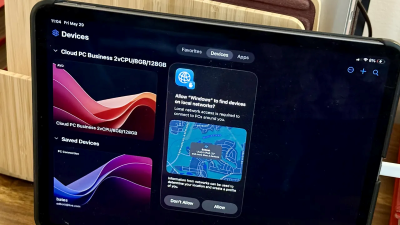
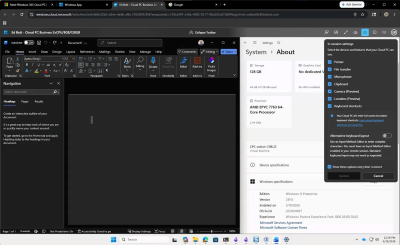
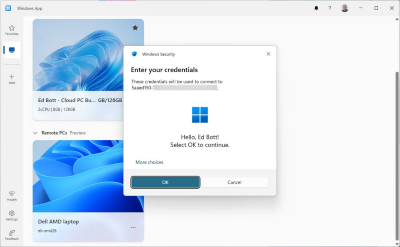
Microsoft has a service called Windows 365 that lets companies rent Windows PCs in the cloud and access them from any modern device, be it an Android phone, an iPad, a MacBook, or dedicated devices like Microsoft's own Windows 365 Link. Today, the company announced that the service is now available in more regions, giving users better access to their cloud-hosted PCs.

The latest region to join the list where Windows 365 is available is the Brazil South region. Having Windows 365 hosted closer to your location enables several benefits, such as reduced latency and support for regional data residency requirements. Like with cloud gaming services, the closer you are to the server, the more responsive and fast your experience gets.

Quote
A Cloud PC is a highly available, optimized, and scalable virtual machine providing end users with a rich Windows desktop experience. It’s hosted in the Windows 365 service and is accessible from anywhere, on any device.

While Brazil South was previously available as an exception for certain users, now all companies and users who are eligible for Windows 365 can access it. Upon provisioning Windows 365, administrators can select Multi-Region Selection, which will place cloud PCs in the best region. Microsoft has dedicated documentation for those who use Microsoft Hosted Network (MHN) and Azure Network Connection (ANC).

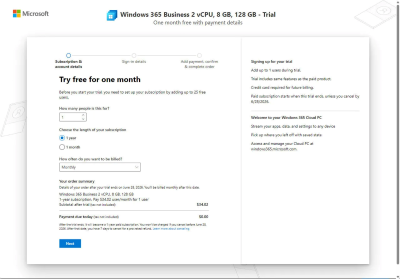
Unfortunately for regular users, Windows 365 remains unavailable for consumers. It requires an Intune license, Windows E3, and Microsoft Entra ID P1. Therefore, those who want to have a PC in the cloud have to rely on third-party services.

You can find more information about Windows 365 in the official documentation. The service currently operates in 31 regions, and the full list of supported countries and areas is available here.

source
60
Windows | Windows 11 | Windows 10 News / Windows 10 Rebounds
« Last post by javajolt on January 28, 2026, 03:31:31 PM »
Windows 11 adoption might have flatlined — and some users appear to be rolling back to Windows 10

Despite a literal "End of Life" deadline, Windows 10 is clawing back market share from a stuttering Windows 11.


(Image credit: Future | Edited with Gemini)

Windows 11 passed Windows 10 in global desktop market share. Now, the newer operating system is on pace to lose its top spot to its predecessor.

Whether it gets that bad for Windows 11's market share is yet to be seen, since the OS has only dropped two months in a row. But those drops have been significant.

According to Statcounter, Windows 11 held a 55.18% market share in October 2025. That share dropped to 53.7% in November and dropped again in December. Now, Windows 11 holds a 50.73% market share.

That's a dip of more than 5 percentage points in just two months. Even leaving room for a margin of error and the fact that these are not official numbers from Microsoft, that's a big deal.

In that same time, Windows 10's market share went from 41.71% in October to 42.7% in November and then 44.68% in December. Even after the increase, Windows 10 has a smaller market share now than it did midway through last year.

Perhaps most surprising is a noticeable rise in the market share of Windows 7, which increased from 2.52% in October to 3.83% in December.

Why is Windows 11 losing market share?


Even Microsoft's original Surface Studio was not able to upgrade to Windows 11 due to hardware
requirements. (Image credit: Future)


Statcounter does not provide a reason for the drop in Windows 11 market share or offer a theory on the matter. It simply provides data. But it's difficult to ignore the timing of Windows 11's dip.

Windows 11 steadily gained market share over time, eventually eclipsing Windows 10 in June 2025. That feat actually took longer than expected.

Microsoft had aggressively pushed people toward Windows 11 and increased efforts further during the lead up to the end of Windows 10 support. In addition to showing full-screen prompts telling people to upgrade, Microsoft made a tool for migrating from Windows 10 to Windows 11.

Windows 10 reached its end of support on October 14, 2025, meaning PCs on the older operating system stopped receiving support or updates unless people had paid for extended support.

I don't think Windows 10's end of support is the direct reason Windows 11 has lost market share since October. Instead, I think the cutoff placed a magnifying glass on Windows 11, and many people didn't like what they saw.

"Windows is Ruining New Laptops"

Windows 11 is in a weird space in 2026. As our Editor-in-Chief Daniel Rubino pointed out, Windows 11 is a strong operating system in many ways. It's still used by hundreds of millions of people and provides program accessibility and stability to a large number of users. Rubino argued that "Windows doesn’t have a feature problem. It has a trust problem."

Windows 11 has also had an awful start to 2026 that's included a Patch Tuesday fiasco that has several parts (1, 2, 3). Problems include people being unable to run basic apps or shut down their PCs without rolling back to previous versions of Windows 11.

Microsoft confirming that it will provide the FBI access to BitLocker encryption keys when requested also erodes trust.

Windows 11 also had a disastrous 2025 in terms of public perception. A growing number of ads built into the operating system and the ever-increasing push to use AI have caused frustration.

I recommend reading Rubino's piece in full. Here's a snippet to give you a taste of his insight:

Quote
"People don’t hate change. They hate surprise. They hate feeling like they’re not part of the conversation. They hate waking up after Patch Tuesday and discovering that something they relied on has moved, changed, or been replaced without warning, e.g., Start menu changes. And they especially hate the creeping sense that the OS they paid for is slowly becoming a billboard for Microsoft’s services."

"Microslop" trending on social media is not a good look for one of the world's most influential tech companies.


Complaints about Windows 11 are expanding across platforms. What started in Windows forums, Reddit posts, and X has made its way to the channels of influencers and reviewers.

Dave Lee (known on YouTube as Dave2D), shared a video titled "Windows is Ruining New Laptops" recently. Again, I suggest going through it in full. The gist is that Windows hardware is in a good spot, but Windows 11 is not.

That sentiment was also shared by our Cale Hunt earlier this year, who said, "PC hardware has never been better. Too bad Windows can't keep up."

With the plethora of issues, bugs, and trust issues relating to Windows 11, it's difficult to pinpoint the exact reasons Windows 11 market share has dipped over the past few months. There's a good chance that it's a death by a thousand cuts situation.

Regardless of the exact reasoning, it's a bad look for Microsoft to have its flagship OS lose ground to an operating system that is out of support.

source
Pages: 1 ... 4 5 [6] 7 8 ... 10