We’ve had the new Zune HD in our hands for a few weeks, and now that we’ve had the opportunity to thoroughly get to know it at an intimate level, we figured it was time to share - but first things first. We’ve gotta say it. Microsoft has been consistently wowing us over the last few months. Say what you will about Windows 7, Bing, et al, but at the end of the day, they are solid offerings that stack of well against their competitors. Then of course, there’s the Xbox 360, which just received a dashboard overhaul, making it even more useful and feature-rich, and there is even more to come this fall. For us to even be thinking about Microsoft in this way is a huge departure from even just one year ago.
So, all that said, where does the Zune HD fit into all this? Well, as we’ve posted previously, the thing has an OLED 16x9 display, and packs in the NVIDIA Tegra processor. Those two pieces of news has us super-excited to see if this thing would live up to the hype. Does it? Go grab a drink and get comfortable, because we are going to delve right in.
ZUNE HD DEVICE HARDWARE
There’s no better place to start than with the device itself. It’s really hard to gauge the size of the Zune HD until you actually see it in person and pick it up. You quickly realize the amount of work and detail that went into designing the product. It consists of aluminum, plastic, and glass, giving it a sort of industrial chic feel. It has hard lines and edges, as opposed to being curved all over like the iPod touch, but that doesn’t make it any less sexy…just different.
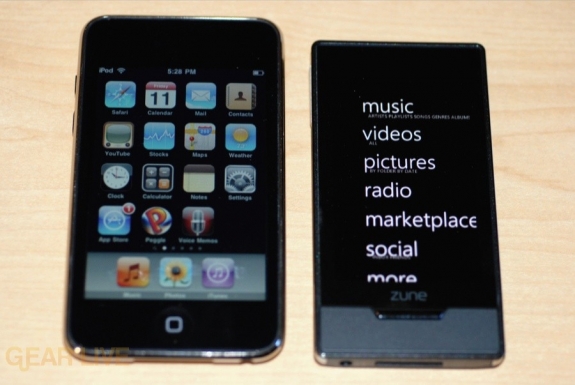
The Zune HD is larger than the previous generation flash models, the Zune 8 and Zune 16, but is much smaller than the similarly sized Zune 80 and Zune 120 units. It’s also smaller than the iPod touch. In fact, we could stand for it to be just a bit larger because the screen size feels like a downgrade from the iPhone and iPod touch screens we are so used to, just in terms of real estate. Speaking of the screen, it takes of just about the entire face of the Zune HD, which we think works nicely.
As far as physical buttons, you’ve got three. There’s a power button at the top of the unit, a media button on the left, and a home button under the 3.3-inch display. When the Zune HD is on and in standby, you can use any of the three buttons to turn on the screen. To turn it back off though, you need to press the power button. If you want to completely shut it down, you need to hold down the power button, and then pull down the on-screen “shade” to power it down. As you navigate throughout the UI, you can get back to the main screen with a press of the home button. We’ll get to that pesky media button later.
Both the syncing port and headphone port are located on the bottom of the device. That makes it easier to use in fitness situations.
On the inside, you’ve got the fantastic 8-core NVIDIA Tegra APX 2600 processor. This takes care of the HD video processing, 3D graphics that will be coming in future Apps (like Forza,) all while being a low-power chip. Definitely a good choice. Speaking of power, you’ll get 33 hours of audio listening time per charge, which also amounts to about 8.5 hours of video. That’s superb. One thing you won’t find in the Zune HD is an internal speaker. We don’t like that fact, and wish it had been included.
Lastly, the Zune HD is available in 16GB and 32GB models, in black, silver, green, blue, and red. The green, blue, and red are available as exclusive colors from the Zune Originals site, where you can also get a custom pattern and/or message engraved into the device as well.
Zune HD unboxed
The Zune HD fully unboxed, playing video.
Zune HD sync cable and accessories
The Zune HD packed in accessories.
Zune HD Manual
Zune HD promos and instructions
The Zune HD comes with these pack-ins.
Zune HD playing a video
The Zune HD playing a demo video on the OLED screen.
Zune HD turned on
The Zune HD powered on.
OLED SCREEN
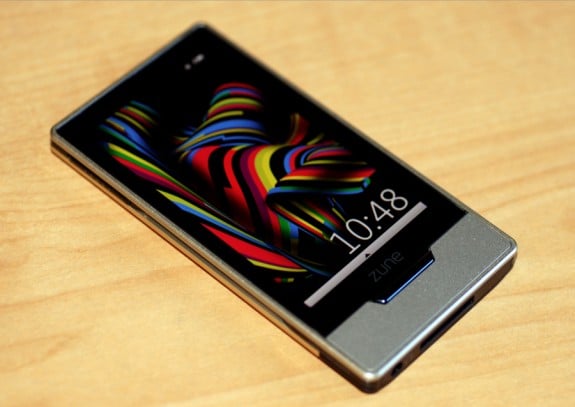
While the actual build quality of the Zune HD is quite nice, you immediately realize that the capacitive 3.3-inch 16x9 480x272 OLED screen is the star of the show the moment you turn it on. If you wanna compare it to the iPhone and iPod touch, those have 3.5-inch capacitive LCD touchscreen displays with 480x320 resolution. So while the iPhone OS devices have a larger screen, the Zune has a true widescreen display, and the OLED technology is just off the charts gorgeous. You get a nice, sharp picture that has great color and deep blacks. The Zune HD also supports multitouch, which is quickly becoming an expected feature on touchscreen devices. I only have two complaints. First, if you use it in direct sunlight, the screen looks washed out. Sure, that is easily fixable, but still, it needs to be mentioned. Secondly, and this may just be a personal gripe of mine, I wish the screen were a tad bigger. Again, after using the iPhone for over two years, going to a screen that is smaller just feels like a bit of a downgrade.
ZUNE HD SOFTWARE
User Interface
Right off the bat, let’s get this out of the way - I love the new UI. It is sexy, and actually plays off the design of the Zune HD hardware itself quite well. After years of Apple being at the top of the MP3 player user interface game, with every other company falling very short, it’s great to see how Microsoft was able to, in our opinion, build a better UI on their hard drive player than seen on the antiquated iPod classic, and has again made something that is a worthy competitor to the UI offered by the iPhone OS. Scrolling and navigating is very smooth, and when you use the accelerometer tilting feature, it is fast. Way faster than using similar functions on an iPhone or iPod touch, in fact. The zooming in and out effect looks great, and makes you feel like you are diving in and out of the menu, going deeper into a 3D field, as opposed to just moving from one menu to the next. It’s very cool.
Home Screen
The Home screen is actually two screens in one, in a way. You get the main sectional menu in the main area, but you also get a section on the left where you can pin items and get quick access to content. If you tap on that area it comes into focus, and pushes the sectional menu off to the right. From here you can get to your currently playing content, Pins (content that you always want to have appear here no matter what,) recent history, and newly added material. I think people will get a lot of use out of the New area - how often have you downloaded a bunch of new content to your Zune, only to forget exactly what that content was later on? This takes car of that problem by showing you the last ten pieces of content (songs or albums, videos, apps, etc.) that you added to your Zune HD.
Browsing Content
Browsing the content on the Zune HD is almost a no-brainer. I say almost because there are some instances that tripped us up a bit, or where things didn’t work as we expected them to. One example of this is how when you go deep into the menu system, if you want to go one level up, you have to click on the area at the top of the screen, which is really just a few cut-off letters that are a part of the menu option you used to get there in the first place. If there were a back arrow or something, that would be a bit more intuitive. Of course, you can always get back to the main page by pressing the home button, but sometimes you just want to go up a level.
There is a cool alphabet system that allows you to auto-scroll down to whatever section you need to. Basically, in a menu, at the start of a new alphanumeric section (like going from songs that start with an A to B to C,) there is a tile with the letter. you tap that, and it gives you the full alphabet and numbers from 0-9. Press whatever one applies to where you want to go, and you are quickly whisked there. I actually prefer this over the way the iPhone has the side-scroll for accomplishing the same task, although I bet people will be split here.
AUDIO
Now Playing
The Now Playing screen shows a lot of the fit and finish that the Zune team put into the Zune HD. When playing a track, you get a similar Now Playing affect to what appears in the Zune software. Images of the artist, song name and details and more all scroll across the screen, and it is very, very cool to watch.
When you aren’t in that mode while playing a track, you have one-touch access to setting up repeat options, turning on shuffle mode, and liking or disliking a track. However, in order to do things like pause, fast forward, rewind, skip, and adjust volume, you need to first press the media button (or tap the album art onscreen) on the side. That means you need to be looking at the Zune HD. To us, that’s kind of an absurd way to do things. You shouldn’t have to use a touchscreen to adjust volume on an audio player. You can make it an option, but it shouldn’t be mandatory, period.
HD Radio
FM radio continues to be supported on the Zune, and this time around it includes HD Radio as well. And you thought that the “HD” just stood for video. Psh. In order to play HD Radio, you’ll need to have something plugged into the headphone port, and since the Zune HD doesn’t have an internal speaker, that’s the only way you’d get to hear any sound anyway, so that’s no big deal. Just know that you can’t browse HD content, even to look at it, unless you have headphones or an aux wire plugged in.
HD Radio gives you potentially higher quality broadcast, and picks up the multicast from stations as well. I say potentially higher quality, because on two different Zune HD units using two different sets of headphones, we did find some HD Radio content to sound a bit static-y. I did notice that the HD logo has 3 levels of brightness when you are listening, and I am guessing that the brighter it is, the better your HD signal. That could be a factor. Still, even if it sounded exactly like FM radio, you still get access to many more stations because of the multiple broadcasts.
The Zune HD also picks up RDS data like the artist name and track title, and displays that onscreen as well. Using that data, in fact, you can tag a currently playing track to be added to your cart so that you can later download it. This is another case where the Zune Pass shines - hear something on the radio and want to download it without forgetting what it is? Tag it, and when you connect to the Zune Marketplace, it’s yours to download. Pretty awesome.
Lastly, you can pause and cache live radio, but you can’t record to save tracks.
continued
