Do you need to clean and format your disk partition? Are you having trouble deleting or formatting a disk partition using Disk Management? If so,
DiskPart is the perfect tool for the job!
This tutorial will show you how to use Diskpart to clean and format your disk partition.
Let’s get started.
What is DiskPart?The DiskPart is a powerful command tool that lets you manage the Windows disks and partitions using
Command Prompt or Windows PowerShell. This command interpreter allows you to delete, create, and modify partitions on any drives your PC can detect, even the external hard drives and
USB storage. It is quite useful when any Pendrive or hard disks get corrupted because of logical errors and stopped working. Using DiskPart commands, you can wipe out the data and start cleaning.
You can use DiskPart to perform the following tasks:
• Create and format partitions on dynamic disks.
• Add, delete, extend, and shrink partitions.
• Format volumes with FAT, exFAT, or NTFS file systems.
• Change a volume label.
• Assign, change and remove drive letters and mount points for volumes.
How to open DiskPart?Launching the DiskPart is not a big task. You are just required to open the Windows command terminals, either the Command Prompt or Windows PowerShell with the administrative rights.
In this post, we would use the Command Prompt to run the DiskPart commands. The same commands can be directly used in Windows PowerShell without any changes.
Here is how to open and use DiskPart using Command Prompt:
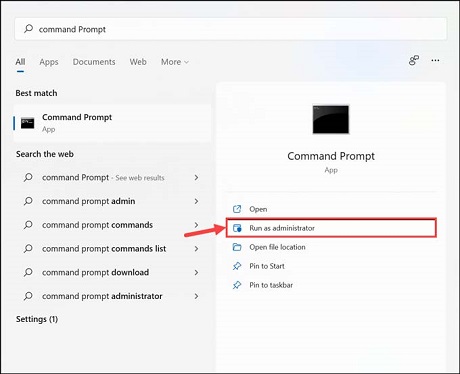
1. Search
Command Prompt in the Windows search bar and launch it with admin rights.
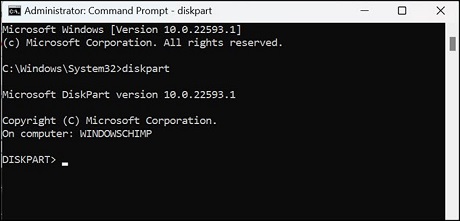
2. In the command window, type
diskpart and hit enter. The DISKPART tool would be open and ready to use.
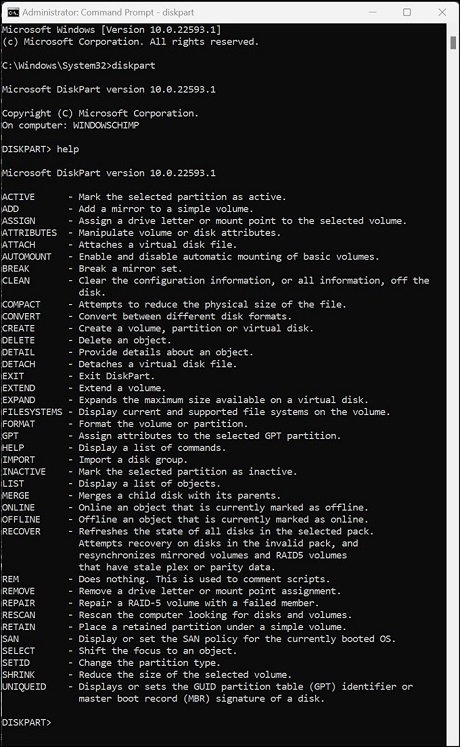
3. If you want to glance at the full list of available commands of DiskPart type
help in the command window
and press the enter key.
4. To close it after using, type
Exit and hit the enter key.
How to use DiskPart to Format a Disk Partition?
If you face a problem in formatting the system hard disk partition, external hard drive, or the USB Pendrive, then using DiskPart, you can easily wipe them out. Obviously, you won’t be able to clean the disk on which your OS is installed.
Here are the steps to format a hard disk partition using DiskPart:
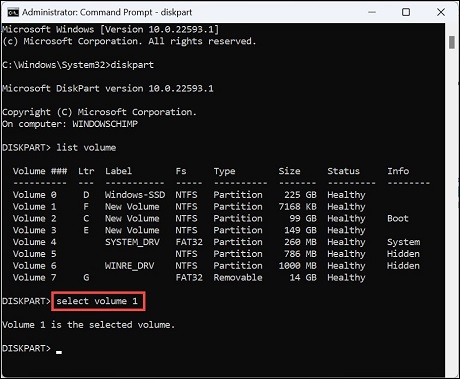
1. Open the DiskPart and after the “
DISKPART>” prompt type
list volume and hit enter. This
command will list all the available and detectable storage disks, including internal and external drives and
USB storage.
2. Use the
select volume n command to select the partition that you want to clean. Replace n with the
volume number of the partition.
3. After selecting the volume, type the
clean command to format it completely. Remember that it
would not warn you, so make sure that you have selected the correct partition before cleaning it.
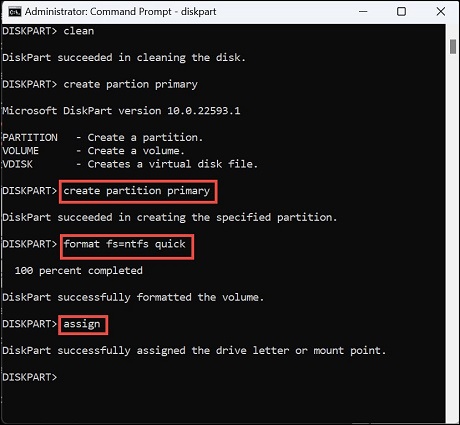
4. Now to make the partition accessible again, use the
create partition primary command. Just type it and hit
the enter key.
5. To store the files on the drive, you need to format the drive with the
FAT or
NTFS file system.
Type
format fs=ntfs or
format fs=fat command and press Enter.
6. Finally, you can assign the drive a letter. Either use the assign command to randomly
assign a letter or use
assign letter=p to assign the letter of your choice.
 Conclusion
We hope this tutorial has helped you to understand how to use Diskpart to clean and format your disk partition. If you have any questions or comments, please let us know in the comments section below. Thanks for reading!
Will this delete all my data?Yes, this will delete all your data on the selected volume or disk. Use with caution!
What if I don’t want to delete all my data?You can use the clean command to clean a specific partition or volume. This will delete all the files and folders on that partition or volume, but will not delete your data stored in other locations.
source
