
The deadline to update your PC to Windows 11 is just days away on October 14. If your PC is showing up as ineligible, there might be an easy fix that will save you the trouble and expense of buying a new device. While it isn’t an option for every Windows 10 PC, making your PC compatible with Windows 11 could be as easy as changing one security setting. This worked for me and allowed me to update an older gaming PC to Windows 11. Here’s how.
The memory, storage, and security specs you need
Unlike a normal software update, Windows 11 has
minimum hardware specs required for your PC to be compatible with it. Those base requirements include a minimum of 4GB of RAM, 64GB of storage, DirectX 12 compatibility, a display that is at least 9 inches diagonally with 720p resolution, a 1GHz or faster processor with at least 2 cores, UEFI/Secure Boot compatibility, and TPM 2.0 compatibility.
Most of these require a hardware upgrade to fix. If you have a laptop, you’ll most likely need to buy a new device if you don't meet one or more of the minimum specs. If you’re using a desktop PC, you could easily increase your RAM, storage, and processor if needed. However, one of the more common compatibility issues is actually one of the easiest to fix: TPM 2.0.
TPM, or "Trusted Platform Module," can be a type of physical chip inside your system or part of your PC’s processor as firmware. If your PC has neither, you’ll need to upgrade your processor or motherboard to run Windows 11. However, many PCs already have TPM support that’s simply not enabled, meaning Windows 10 won’t detect it when checking for Windows 11 compatibility. Verifying this only takes a few minutes, so it’s worth checking before buying new hardware.
How to turn on TPM 2.0 on your Windows 10 PCHere’s how to update this security setting needed for Windows 11
The TPM is part of the security requirements for Windows 11, although it’s not strictly necessary for your CPU to do its job. Windows 11 uses the TPM chip to store sensitive data like biometric data and encryption keys because the TPM chip is more secure than your device’s regular drive.
On some PCs, especially custom-built desktops, that TPM chip might be present but just disabled by default. Luckily, there are a few steps you can try to enable it so you can run Windows 11.
Power off and enter your PC’s BIOS
Start by completely powering off your PC and rebooting it into your BIOS, where you can manage your hardware settings. You enter the BIOS by repeatedly pressing a specific key on your keyboard, often escape or delete.
If you’re not sure what your device’s BIOS key is, check your motherboard manual or the manual for your laptop. A quick Google search for your motherboard or laptop model can also easily pull up that info. On my MSI B550 Gaming Plus motherboard, the BIOS key is the delete key.
The BIOS is going to look different depending on your motherboard or device, but you’ll know you’ve successfully booted into it because it doesn’t look like Windows 10. You should see a dashboard with a variety of hardware settings you can adjust, along with your system specs.
Updating your security settings in the BIOS
Take a look around your BIOS until you find your security settings. In my MSI BIOS, the TPM setting was located under the general settings tab, then "security," then "trusted computing." In the corresponding security menu in your BIOS, look for a “security device” setting. It should show up as either “enabled” or “disabled.” If it’s turned off, activate it.
The security menu might even show you if you have a TPM 2.0 chip on your device. The MSI BIOS displayed this info right at the top of my security settings.
Exit the BIOS and reboot your PC
After enabling the TPM chip on your device, save your changes and exit the BIOS (your BIOS might not have a “save” button, but it will ask if you want to save your changes when you exit the BIOS). After you leave the BIOS, your PC should boot into Windows like normal. Once your PC finishes booting back into Windows 10, return to the Settings app. Now, when you go to the Updates tab, you should see an option to check for updates or install Windows 11. If you have any other updates pending, let those run first and check for the Windows 11 option again afterward. If your PC is eligible to update to Windows 11, the option will show up under your Windows Updates tab eventually.
You might also see a notification in the upper right corner of the "Updates" tab in the Settings app saying your device is eligible for Windows 11, but the update isn't ready yet. If that's the case, try clicking the button to "check for updates" again.
Run updates and start Windows 11 install
If you get the option to update to Windows 11 after updating your device’s TPM setting, congratulations—you’re good to go, no new hardware needed. Installing Windows 11 shouldn’t remove or change anything on your device, but it may be a good idea to back up anything important before installing, just in case. The update will also take a while, so be prepared to let your device sit and run through the process, powered on, for at least half an hour or more.
 What if your PC isn’t eligible for Windows 11?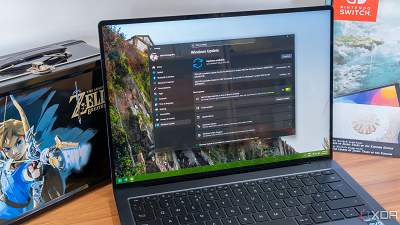
If you’re still not seeing an option to update to Windows 11 even after enabling your TPM chip and letting other updates finish installing, unfortunately, there may be some other hardware compatibility issue preventing you from installing Windows 11. You can
use Microsoft’s PC Health Check app to run a scan of your device and pinpoint any incompatibilities (or trigger a fresh scan that might make your device pick up the updated TPM setting).
In the event that your device isn’t compatible with Windows 11 and you can’t upgrade your hardware, there are a couple of alternatives. You can technically keep using Windows 10, but be aware that it isn’t getting regular updates anymore, which means you’re potentially exposing yourself to security risks.
You can also switch to a Linux distribution instead. Most are free, open-source, and support a broad range of hardware specs. There are even some that look a lot like Windows 10, such as Linux Mint.
source
