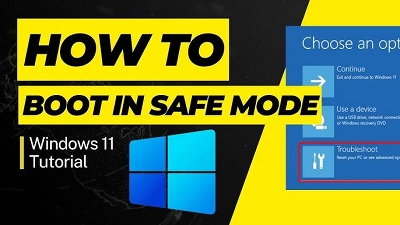
When your PC misbehaves, Safe Mode is your best friend. Whether you’re dealing with an unresponsive app, a suspicious driver, or a boot loop, Safe Mode in Windows 11 strips down your system to its essential functions—making troubleshooting far less painful.
In this updated 2025 guide, we’ll walk through everything you need to know about Safe Mode in Windows 11—from how to boot into it using multiple methods, to understanding what it actually does, and how to exit it when you're done. You'll also find out why Safe Mode still matters, even in a world of sleek AI-assisted diagnostics and cloud recovery tools.
What Is Safe Mode in Windows 11?Safe Mode boots your Windows 11 PC with a minimal set of drivers and services. No third-party apps. No startup programs. It’s like stepping into a clean version of Windows designed just for fixing things. Whether you're dealing with malware, driver conflicts, or boot errors, Safe Mode offers a stable platform to investigate.
There are two versions:
• Standard Safe Mode : Loads only the most essential drivers.
• Safe Mode with Networking : Also loads networking drivers and services.
Why Use Safe Mode?Still wondering why you’d need Safe Mode in 2025? Here’s when it can save your system:
• Your screen is stuck in a black loop after an update
• Windows won’t boot normally
• A new app is crashing the system
• You need to uninstall a faulty driver
• Malware is preventing full system control
How to Boot Windows 11 in Safe Mode (6 Methods)Let’s explore all the different ways to enter Safe Mode.
1. From Settings >
Recovery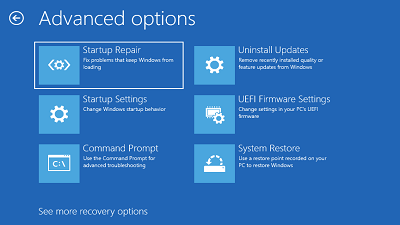
If your system is working well enough to access Settings:
1. Open
Settings.
2. Navigate to
System >
Recovery.
3. Under
Advanced startup , click
Restart now.
4. After rebooting to the blue screen menu, select
Troubleshoot >
Advanced Options >
Startup Settings.
5. Hit
Restart again.
6. Press
4 or
F4 to start in Safe Mode.
2. Using the Shift + Restart Shortcut 1. Hold down
Shift and click
Restart from the Start menu.
2. Follow the same steps as above in the Advanced startup screen.
3. Booting via the Command Line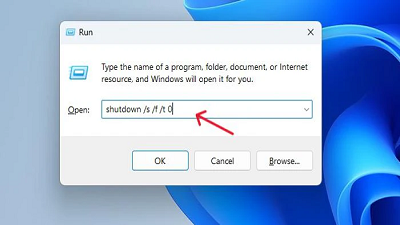
If you’re already inside Windows:
shutdown /r /o /f /t 0
This restarts your PC into Advanced Startup mode. From there, proceed with Startup Settings > Safe Mode .
4. From a Black Screen (Forced Interrupts)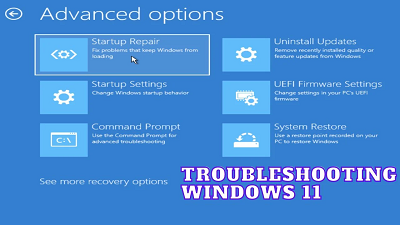
If your system is stuck:
1. Power off your PC by holding the power button.
2. Repeat this 2–3 times until Windows launches Automatic Repair .
3. Select
Advanced Options >
Troubleshoot >
Startup Settings.
5. Using the Windows 11 Installation Media 1. Plug in your
Windows 11 bootable USB .
2. Boot into the installer.
3. Select
Repair your computer >
Troubleshoot >
Advanced options >
Startup Settings.
6. Via msconfig (System Configuration) 1. Press
Windows + R , type
msconfig, and hit
Enter.
2. Under the
Boot tab, check
Safe Boot.
3. Click
OK and restart.
TIP: Don't forget to uncheck Safe Boot when you're done!
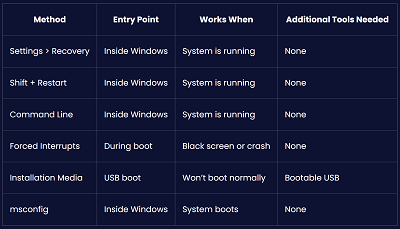
Table: Methods to Boot into Safe Mode
 click image ▲ to enlargeHow to Exit Safe Mode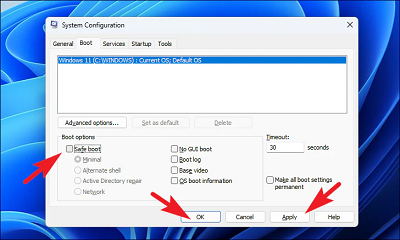
Once you're done troubleshooting:
Option 1: Restart NormallyJust restart your PC. If you booted into Safe Mode via Shift + Restart or installation media, this will take you back to normal Windows.
Option 2: Disable via msconfigIf you used msconfig to start Safe Mode:
1. Open
Run >
msconfig.
2. Uncheck
Safe boot under the Boot tab.
3. Restart your PC.
Tips While in Safe Mode • You can open
Device Manager to disable or roll back problematic drivers.
• Use
Registry Editor to fix startup keys or malware registry entries.
• Run
SFC /scannow or
DISM from the Command Prompt.
Safe Mode can also be used to uninstall updates, restore points, or even rollback to Windows 11 version 22H2 if the latest 2024 update caused issues.
Windows Copilot & Safe Mode: Compatible?If you're on one of the newer Copilot PCs , the AI assistant won’t launch in Safe Mode—it depends on services that don’t start in minimal boot environments. So don’t expect Copilot help here—you're flying manual.
Bonus Tip: Create a Safe Mode Shortcut on Desktop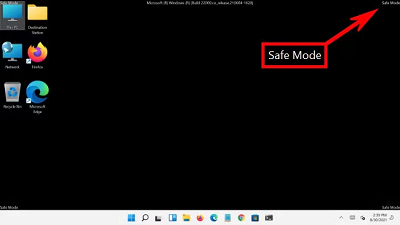
For frequent tinkerers:
1. Right-click on Desktop >
New >
Shortcut.
2. Enter:
shutdown.exe /r /o /f /t 0
3. Name it
Safe Mode Boot.
Common Mistakes to Avoid •
Forgetting to exit Safe Mode via msconfig .
• Assuming Safe Mode fixes everything —
it's a tool for diagnosing, not the fix itself.
•
Trying to use Windows Update or download drivers —some services won’t run in Safe Mode.
FAQs – How to Boot Windows 11 in Safe ModeHow to boot into Safe Mode Windows 11?Use
Settings >
Recovery ,
Shift +
Restart , or force shutdowns to trigger Advanced Startup , then select
Startup Settings >
Safe Mode .
How do I start Windows 11 in Safe Mode?Use any method like Shift + Restart, msconfig, or recovery options to enter Safe Mode.
How do I get out of Safe Mode in Windows 11?Just restart your PC. If Safe Mode was activated via
msconfig , uncheck the Safe Boot box before restarting.
Can I boot into Safe Mode if my screen is black?Yes. Force shutdown your PC two or three times. Windows will load into
Automatic Repair , letting you access Safe Mode.
Does Safe Mode load Wi-Fi or internet?Only if you choose
Safe Mode with Networking . Standard Safe Mode disables network drivers.
Can I use File Explorer or Command Prompt in Safe Mode?Yes, both are available in Safe Mode for advanced troubleshooting.
Final ThoughtsSafe Mode remains a rock-solid tool for anyone who wants control, clarity, and calm during PC chaos. In 2025, as Windows grows smarter, more visual, and more AI-driven, knowing how to strip it back to the basics will always give you an edge.
Whether you're tweaking settings, uninstalling faulty updates, or just trying to survive a
Windows Release Health hiccup, Safe Mode is your backstage pass to fixing it all.
source
