Skip endless settings menus. Here's five Windows command-line tools to repair system files, fix disk errors, reset networking, flush DNS, and more.
Sometimes when something breaks in Windows, I skip the Settings app and go straight to Command Prompt. Five built-in commands handle the bulk of common problems - repairing corrupted system files, catching disk errors, clearing stale DNS entries, resetting broken network connections, and checking laptop battery health. Each one runs in a single line and delivers results faster than any Settings menu or troubleshooter.
SFC Finds and Repairs Corrupted System Files AutomaticallyWindows depends on thousands of system files to function properly, and any of them can become corrupted due to bad updates, sudden shutdowns, or even malware. When that happens, you get vague symptoms such as apps crashing for no reason, Windows features stopping, or missing DLL errors.
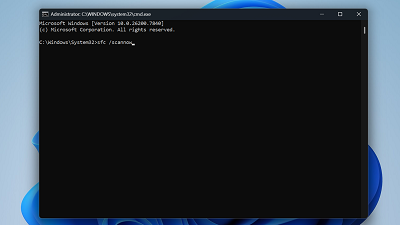
The System File Checker (SFC) scans every protected system file on your machine and compares it against a cached copy. If something doesn't match, it automatically replaces the corrupted file. To run it, open Command Prompt as administrator, type
sfc /scannow, and press Enter. The scan usually takes 10 to 15 minutes and needs no input from you once it starts.
Once it finishes, SFC reports one of three outcomes. It either shows no integrity violations found, corrupt files found and repaired, or corrupt files found, but not all could be fixed. If you get the third result, run
DISM /Online /Cleanup-Image /RestoreHealth first. This pulls fresh copies of files from Windows Update, then run
sfc /scannow again. It should succeed this time.
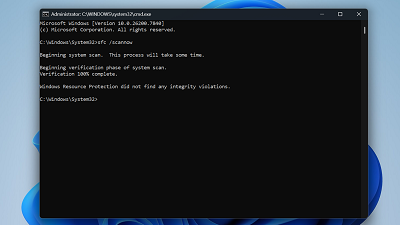
I use SFC as my first move whenever Windows starts behaving strangely after an update. It's the fastest way to rule out file corruption before wasting time on deeper troubleshooting.
CHKDSK Catches Disk Errors Before They Destroy Your DataFile system errors can build up silently. Bad sectors, metadata corruption, and improper shutdowns all leave marks on your drive, and you won't notice until Windows throws a blue screen (BSOD). CHKDSK catches these problems early, before they snowball into actual data loss.
The two flags worth knowing are
/f and
/r. Running
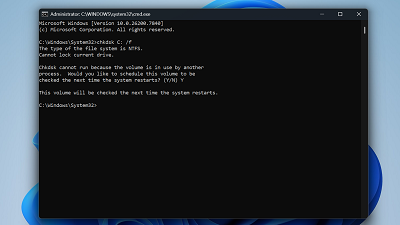
chkdsk C: /f fixes file system errors, while
chkdsk C: /r goes further-it locates bad sectors and recovers whatever data it can. The /r flag includes everything /f does, so it's the more thorough option, though it takes considerably longer.
CHKDSK works on both HDDs and SSDs. However, on SSDs, it won't scan for bad sectors the same way since SSDs handle that internally through their own controllers, but it still catches and repairs file system errors, which are the more common problem regardless of drive type.
One thing that catches people off guard: if you run CHKDSK on your system drive, Windows can't scan it while it's in use. It'll ask to schedule the scan for the next reboot. If you say yes, your PC will run the check before Windows loads, and that pre-boot screen is completely normal.
I run CHKDSK once every few months, especially on older hardware.
Flushing DNS Instantly Fixes Weird Browsing ProblemsWindows caches DNS lookups locally, so it doesn't have to resolve the same web addresses repeatedly. That's efficient until the cache goes stale. When it does, you get bizarre browsing behavior that includes specific websites refusing to load, or your browser throws a "DNS_PROBE_FINISHED_NXDOMAIN" error while everything else works fine.
The fix takes about two seconds. Open Command Prompt as administrator, type ipconfig /flushdns, and hit Enter. You'll get a confirmation that says "Successfully flushed the DNS Resolver Cache." That's it. Windows will now fetch fresh DNS records on your next request.
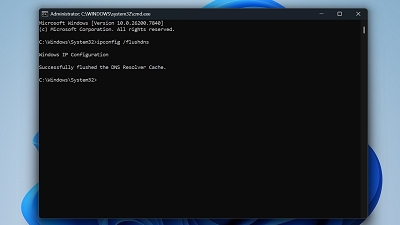
I flush DNS whenever I switch to a different DNS provider, after removing malware, or when a website I visited an hour ago suddenly stops loading. It's also worth knowing about two companion commands:
ipconfig /release and ipconfig /renew. They drop and re-request your IP address from the router. Together, these three commands resolve most connection quirks without touching the settings page.
Resetting Winsock Fixes Broken Network Connections That Nothing Else WillSometimes your network just dies. The Wi-Fi icon shows a connection, your router is working fine, and other devices can browse without issues, but your PC refuses to load anything. The Windows troubleshooter tells you something is wrong and then does nothing about it. This is usually a corrupted Winsock catalog.
Winsock is the interface Windows uses to talk to network services. VPN software, antivirus tools, and malware can all corrupt it, and when they do, your network stack essentially breaks from the inside. No amount of toggling airplane mode or restarting the router will help.
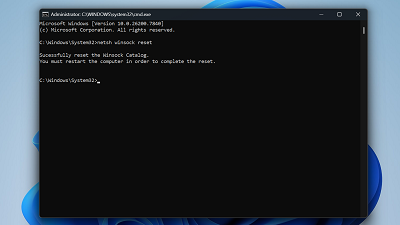
To fix this, open Command Prompt as administrator, type
netsh winsock reset, and press Enter. Then restart your PC - this step is mandatory for the reset to take effect.
 Note:
Note: This command resets networking configuration to factory defaults, so programs that installed custom network components, such as certain VPNs or firewalls, may need to be reinstalled or reconfigured afterward.
Battery Report Tells You What Windows Won't About Your Battery HealthWindows shows you a battery percentage in the taskbar and nothing else. There's no built-in settings page that tells you how much capacity your battery has actually lost over time - which is strange, considering every laptop battery degrades with use. The information exists, but Windows just doesn't surface it anywhere obvious.
Running
powercfg /batteryreport in an elevated Command Prompt generates a detailed HTML report and saves it to your user folder. The file path appears in the output, and you can copy it into a browser to open the report.
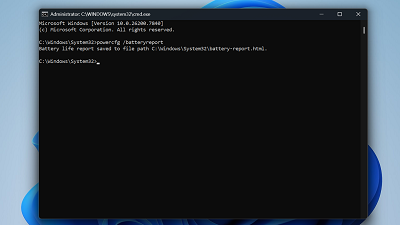
The section that matters most is Design Capacity versus Full Charge Capacity. Design Capacity is what the battery held when it was new; Full Charge Capacity is what it holds now. If the current number has dropped below 60-70% of the original, your battery is on its way out, and a replacement is worth considering.
The report also logs charge cycles and usage history, which makes it handy when buying a used laptop. I check mine every few months to keep tabs on degradation.
These five commands cover a lot of ground, but the command line goes deeper than this. Tools like
DISM for repairing the Windows image,
diskpart for managing partitions, and
shutdown /r /o for booting straight into recovery options are all worth exploring next. Once you're comfortable running a few commands, the Settings app starts to feel like the slow route it always was.
source
