Windows 10 Taskbar is a handy UI feature that is used for many purposes like accessing the Start Menu, pin down the frequently used apps, maximizing the minimized applications, checking the time, date, and network, and many more similar tasks.
One of the most common errors users face is Windows 10 Taskbar disappeared. There could be various reasons for it; whatever it may be, it’s pretty frustrating for the users, especially when the taskbar suddenly vanishes while it is needed the most, for example, while accessing the Start Menu.
Fortunately, fixing the taskbar disappearance is not a big issue and can be done in few steps depending on the cause.
In this post, we would walk through all the solutions to fix the Windows 10 Taskbar disappeared issue.
What causes the Windows Taskbar Disappeared issue?There could be various reasons for the taskbar to disappear. These are the top ones:
1. The taskbar might have accidentally resized and hidden at the bottom of the screen.
2. If the user has changed the resolution beyond the monitor screen size, the taskbar might not
fit.
3. The Windows Explorer might have crashed, causing the taskbar to hide.
4. The taskbar might be set for auto-hide.
How to fix Windows 10 Taskbar disappeared issue?Depending on what causes it, there are multiple methods to fix the hidden taskbar issue. Here is the list:
Turn-Off the Taskbar AutohideMostly the Windows 10 taskbar disappears problem arises when the users set it to autohide and forget about it. In such a case, the user can access the taskbar by rolling the mouse pointer to the bottom of the screen.
If you have accidentally set the taskbar to autohide, you can easily undo the changes from the settings. Here are the steps to do that.
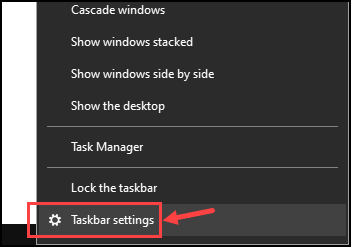
1. Bring the mouse pointer at the bottom of the screen to activate the taskbar. Right-click on it
and select the
Taskbar settings.
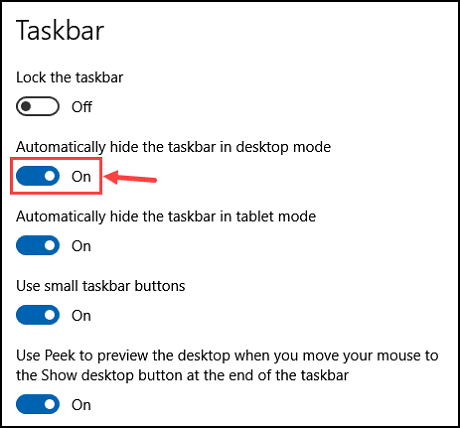
2. Toggle the button next to
Automatically hide the taskbar in desktop mode to turn off
the auto-hide.
 Change the Screen Resolution
Setting the screen resolution beyond the monitor size can also result in Windows 10 taskbar disappearance. For the best viewing experience and to unhide the taskbar, it is advised to reset the display to correct screen resolution. Here are the steps for that:
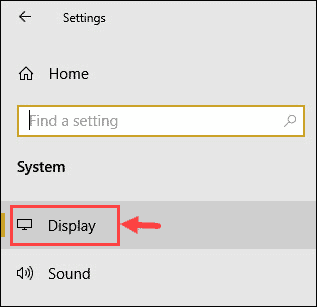
1. On the Desktop screen, right-click and choose the
Display Settings.
2. Under the Display settings page, scroll down and click on the
Display resolution drop-
down menu.
3. Choose the recommended display resolution for the best viewing experience and fix the
taskbar disappeared issue.
Disable the Tablet ModeIf the user has accidentally switched to the Tablet mode from the Desktop mode, then this can also cause the Windows 10 Taskbar disappeared issue. Here are the steps to get back to the Desktop mode from the Tablet mode:
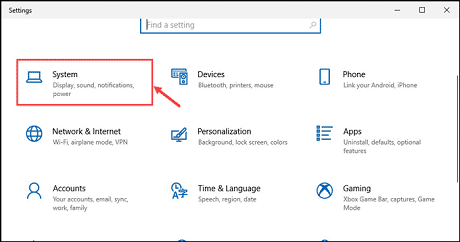
1. Press
Windows + I to launch the
Windows Settings. Select the
System settings.
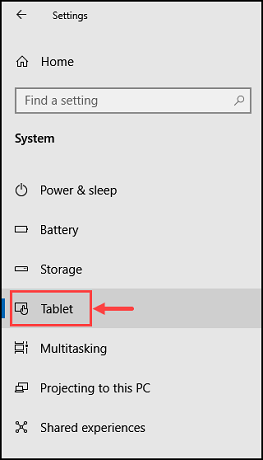
2. From the left pane, click on
Tablet.
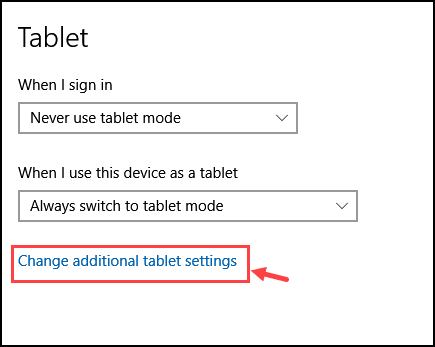
3. Next, click on
Change additional tablet settings.
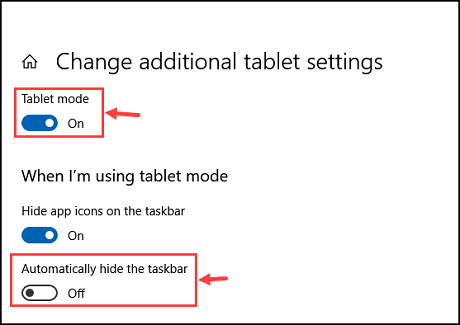
4. Now, either disable the Table Mode or turn off the
Automatically hide the taskbar button under the When I am using Tablet mode heading.
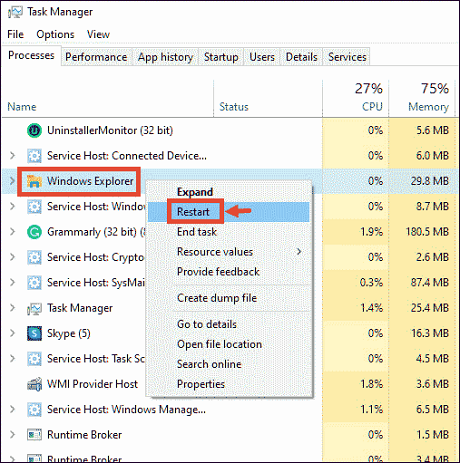
 Restart the Windows Explorer
The taskbar remains active on the screen because of the Windows Explorer process. Sometimes the “
explorer.exe” process might cause some glitch and cause the Windows 10 taskbar to disappear problem. In such a scenario, restart the Windows Explorer. Follow these steps for that:
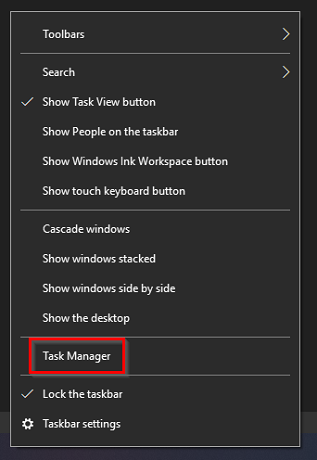
1. Right-click on the taskbar and select the Task Manager.
2. Search for
Windows Explorer, right-click on it, and choose
Restart.
 Change Project Setting
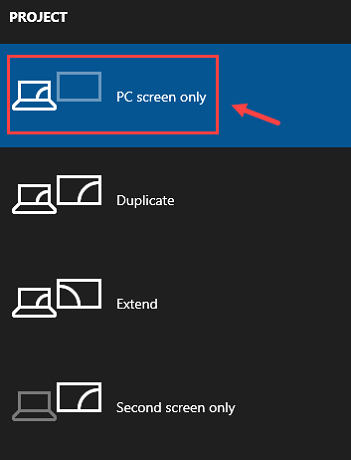
Some user might have projected their system screen and therefore changed the Project setting, which is now causing the taskbar disappearance issue. To solve it, change the Project settings. Follow these steps:
1. Press the
Windows + P keys combination on your keyboard.
2. Select
PC screen only under the project settings.
 Update the Graphic Driver
The outdated graphic card driver might cause the incompatibility issues resulting in the Windows 10 taskbar disappeared problem and other display irregularities. The solution to fix this issue is to update the Graphic Driver. Follow these steps:
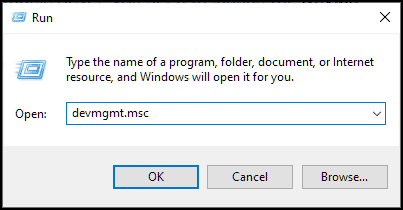
1. To update the graphic driver, launch the
Device Manager. Open the Run command box
using the Windows+R keys, type
devmgmt.msc, and hit the enter key.
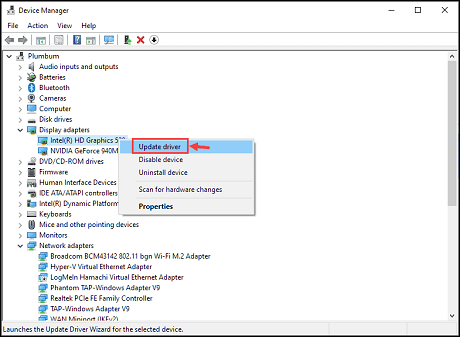
2. Under the
Display Adapters, right-click on the Display card you want to update, and
select
Update Driver.
3. Follow the on-screen instructions to update the drivers.
Fix Corrupted FilesThe Windows 10 taskbar disappeared issue can also be caused because of corrupted system files. System File Check or SFC command can be used on the Windows command line applications, i.e., Command Prompt and Windows PowerShell, to check for the corrupted files. Those corrupted files can be fixed by using the DISM command. Here are the steps for that:
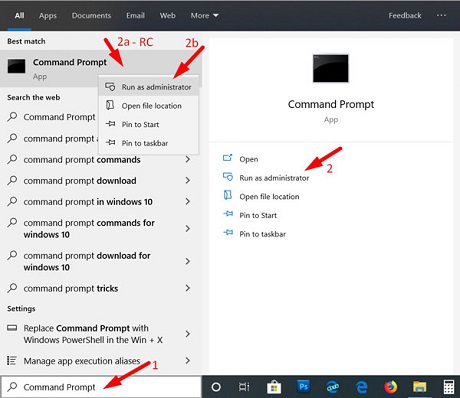
1. On the Windows search box, type
Command Prompt, right-click on its icon, and choose
Run as Administrator.
2. On the command line window, type the
sfc /scannow command and press the enter
key.
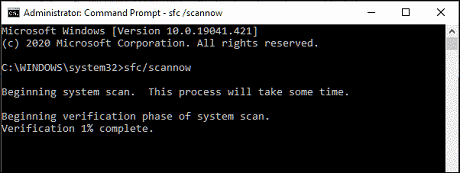
3. The process would take some time to complete.
4. After the process is completed, type the
DISM /Online /Cleanup-Image /RestoreHealth command on the command line window and hit the enter key.
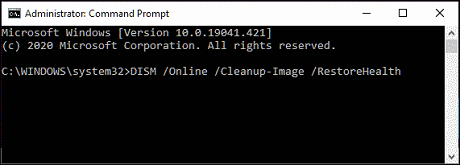
Running both these commands would fix the corrupted system files and possibly the hidden taskbar issue with it.
FinallyThe Windows 10 taskbar disappeared problem can be frustrating when users urgently want to access it but couldn’t. Anyone who desperately wants to solve the issue can follow this guide and fix the problem after knowing the cause behind it.
Why Windows 10 taskbar disappeared? There could be various reasons for the taskbar to disappear, like screen resolution change, outdated drivers, etc. However, the issue can be solved easily by following this guide.
Can I hide the Windows 10 taskbar in Tablet mode?Yes, you can hide the Windows 10 taskbar in tablet mode by making changes in the Tablet mode settings.
source
