
It’s one of those muscle memory frustrations that hits every time I switch from a Mac to a PC: I highlight a file or photo, hit the spacebar, and nothing happens. While macOS users have long enjoyed the convenience of Quick Look, Windows users have been forced to double-click and wait for a heavy app to launch just to see if they have found the right document.
Enter PowerToys Peek. This tiny, official utility from Microsoft finally fixes this frustration. It brings lightning-fast file previews to Windows with a simple shortcut.
The issue with the current implementationThe open-and-close fatigue
The ‘open-and-close’ cycle affects my productivity on Windows. When I’m deep in a project, I usually have a folder overflowing with files named things like Final_v1, Final_v2_edit, and Actual_final. On my Mac, I just press the Spacebar, see what’s inside, and move on. It’s seamless.
But it’s not as hassle-free when I switch to Windows. Without a quick preview, I’m forced to go into this routine: double-click the file, wait for a couple of seconds for a heavy app like Microsoft Photos or a sluggish PDF reader to initialize, realize within half a second that it’s the wrong decision, and then look for X to close it.
By the time I have done that three or four times, I have completely lost the flow. You don’t realize how much that drains you until you find a way to make it stop.
What exactly is PowerToys Peek?Official from Microsoft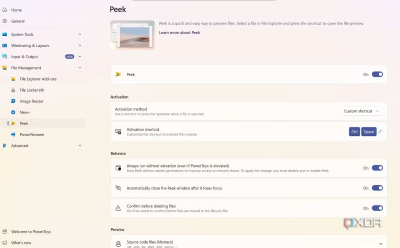
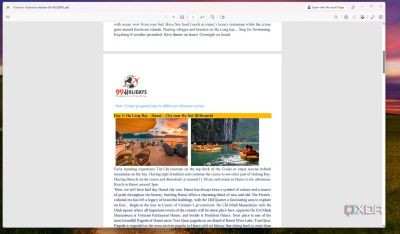
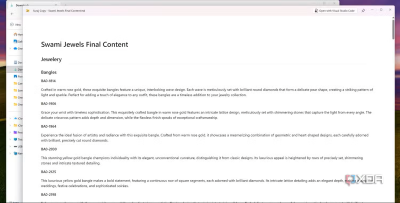


I usually stay away from third-party hacks that promise to fix Windows. They usually end up bloated, buggy, or shady. But PowerToys Peek is different because it’s part of Microsoft’s own open-source suite. It feels like a Pro version of Windows that should have shipped from the factory.
At its core, Peek is a lightweight-fast, system-level previewer. Once you install it, you just highlight a file in File Explorer and hit a shortcut (I have remapped mine to the Spacebar, obviously), and a clean, high-res window instantly pops up showing you exactly what’s inside.
What I love is that it doesn’t just show a blurry thumbnail. Whether it’s a massive 4K photo, a complex PDF, or even a large Markdown file, Peek renders is immediately. Although I would like to have better animations when opening or closing a file using Peek.
It’s using the system’s native preview engines to give you a snapshot without launching a full-blown application.
Several configuration optionsPlay with PowerToys settings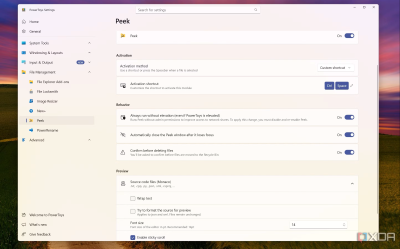
Microsoft didn’t just offer Peek in PowerToys and call it a day. It’s packed with a range of customization options. For instance, I can choose any key combination to activate it in File Explorer.
I also spent some time playing with the window behavior. I realized I didn’t want the preview window jumping all over the place, so I used the pinning feature.
Now, if I resize the Peek window to a specific spot on my second monitor, it stays there. It’s perfect for when I’m dealing with a massive folder of photos.
Since I occasionally peek at code, the Source Code settings were a surprise win for me. I can toggle Wrap text (essential for long lines of code) and even turn on Minimap, just like in VS Code.
Explore other File Explorer add-onsThere is more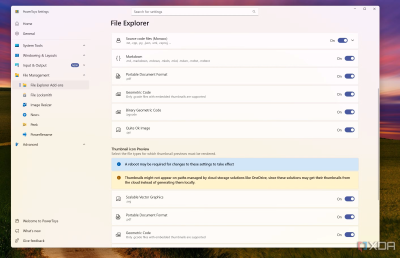
While Peek is the headline act for me, PowerToys can quietly upgrade the rest of File Explorer.
The recently introduced New+ is an interesting add-on. It integrates with the context menu and lets you create custom templates.
For example, I have a specific ‘Project Starter’ folder that contains a Notes.md file, an Assets subfolder, and a Draft.docx. Instead of manually creating these, I just right-click, hit New+, and select my template.
It clones that entire folder structure instantly. It’s one of those things you don’t need until you are saving five minutes every time you start a new project.
You can even head into the Thumbnail Previewer and make multiple changes to elevate your File Explorer experience.
Finally, if you are a fan of the built-in Preview Pane (the one you toggle with Alt + P), PowerToys supercharges it. It adds support for Markdown files. Sometimes, I don’t even need to use Peek; I just click the file, and the code appears beautifully formatted in the side panel.
It’s these little things like Peek, templates, thumbnails, and smarter previews that turn File Explorer from a basic file browser into a serious productivity hub.
Make File Explorer betterWhether you are a recent macOS convert or a longtime Windows power user, adding Peek to your File Explorer can instantly boost your workflow. Of course, going forward, I would love to see a native implementation of the File Explorer app with smooth animations.
If you are tired of the endless cycle of opening and closing apps just to find the right image or document, PowerToys is a mandatory download. It’s small, it’s official, and once you remap that shortcut to the Spacebar, you will never look at a file the same way again.
 PowerToys is an all-in-one productivity tool from Microsoft.
 Download from Githubsource
