This article will walk you through the steps to Enable God Mode On Windows 11. We have explained two methods, so try out one of the methods and enable God Mode if it does not work, you can do it with the help of the following method. Before that, we will see a short intro on what is God Mode? In the below section.
What is God Mode?God Mode is a
compilation of all the settings of the administrative tools, restore options, and management. It all will be added up in
one single window, which is why it is
named after God Mode. This feature does not show up in the settings you don’t have on Windows 11, but it is a special compilation of all the folders in a single section. It has the settings option for the
control panel tools in a single folder that you can change using this single interface.
One easy window for categories of tools is called
God Mode. It saves your time with the aid of having all these features in one window so that you don’t have to use the
Run command or start menu or control panel anymore. This method needs an
administrator right, so make sure that your account has administrator rights. You can get it noted with the help of the
Control panel User accounts applets. In the account you have on your system, you need to have the
Administrator option to
confirm that your account has administrator rights.
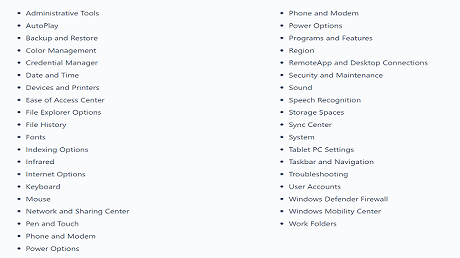 click to enlargeEnable God Mode On Windows 11
First, make sure that you have administrator rights and move on to the steps to Enable God Mode. We are not going to navigate anywhere. We are going to use the desktop for this process. So we are going to start with the desktop.
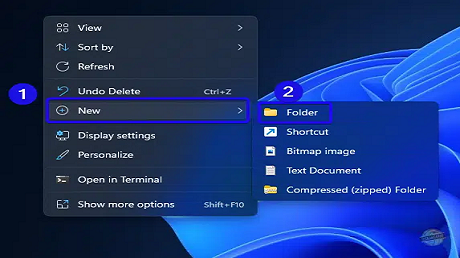
1. First, you have to create a folder, so you have to
right-click anywhere on the screen, get the
Context menu, and select the New option.
2. Then expand the
new options and select the
Folder Option to create a new folder.
3. A folder will appear in which you have to
paste the following text as shown in the box below
and paste it on the folder’s name.
GodMode.{ED7BA470-8E54-465E-825C-99712043E01C}
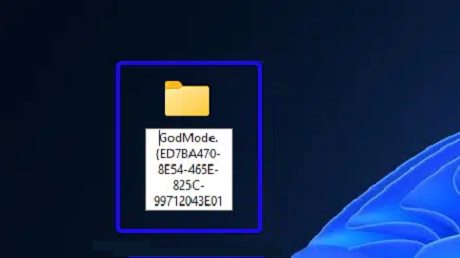 Folder Named as Referred
 4. The icon will change into a
control panel icon in a few minutes. When you open the folder,
you will get a list of options and settings alphabetically.
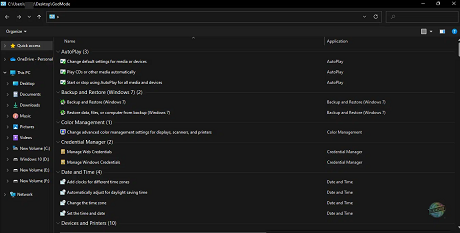 click to enlarge -God Mode Via Created Folder An alternative method to Enable God Mode
If the previous method does not work for you, you can use this method to enable the God mode via creating a shortcut page.
1.
Right-click anywhere on your desktop. There is no specific place to make this action. It may be on any place on your desktop.
2. You will get the
Context Menu with a list of options when you do it.
3. Figure out the
New option and
select the option to get
yet another sub-menu in the list of options.
4. In the submenu that appears after choosing the New option, you can see the
shortcut option as the second option.
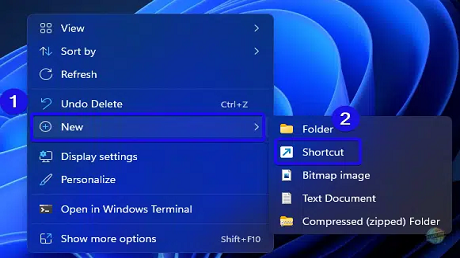 Context Menu
 5. Select the option to get to the Create Shortcut page.
6. It will take you to the “
Create Shortcut” page, where you can create shortcuts.
7. You can see the “
Type the location of the item,” where you have to give the location of the feature that you want to create a shortcut. Here you have to give in
explorer.exe shell:::{ED7BA470-8E54-465E-825C-99712043E01C}.
explorer.exe shell:::{ED7BA470-8E54-465E-825C-99712043E01C}
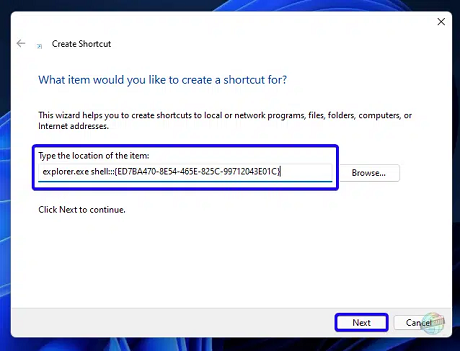
8. Type the path location, and You can also paste it using the box below) and reach out to choose the
Next button.
9. On the next page, you can
personalize or customize a name for the shortcut so that you can identify it easily on the desktop.
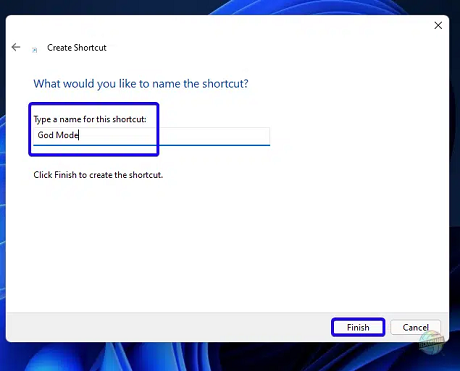
10. Once you select the
Finish option, you will be taken out.
11. Please don’t freak out while on the desktop, as it is a process. You can now see the shortcut you
created with the “
Create Shortcut” page on the desktop.
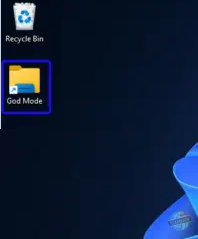 God Mode Shortcut
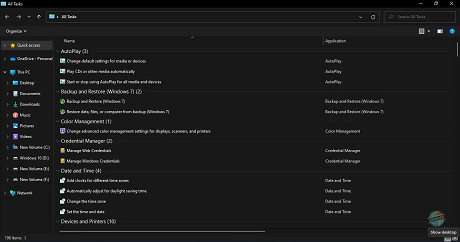 click to enlarge - All Tasks open when you click the shortcut God Mode
You will get the same options as shown in the image above if you open this. If the previous does not work, you can use this method.
In ClosingGod Mode is a compilation of all the
settings of the administrative tools, restore options, and management. This mode is called the God Mode because it
beholds a number of tools. This action of
creating or enabling the God Mode is easier than you think it would be. We have seen two methods to enable one is a
typical method and the other method is
via the Create Shortcut page. Either using one of the methods you can do enable the god mode.
If you want to know more about Windows 11 shortcuts, follow our official website. If you have any doubts regarding this article, let us know in the comment section.
source
