Dolby Atmos is an audio technology that gives you a more immersive experience when watching movies or playing games. It creates a three-dimensional soundscape that makes you feel like you are right in the middle of the action. If you want to experience Dolby Atmos on your Windows 11 computer, we have good news for you: it’s possible to get it for free!
In this blog post, we will show you how to get Dolby Atmos Sound on Windows 11 and
boost the volume on your system. Keep reading for instructions.
What is Dolby Atmos?Dolby Atmos is a sound system that creates a three-dimensional soundscape. It was first introduced in movie theaters in 2012 and has since made its way to homes around the world.
The technology uses speakers that are placed around the room to create an immersive experience. If you have ever been to a movie theater that had Dolby Atmos, you know how impactful it can be.
It makes you feel like you are right in the middle of the action and allows you to hear sounds from all around you.
The Windows 10 Creature’s Update was the first to include Dolby Atmos for headphones, which is one of the app’s headphone-only features.
Although Dolby Atmos has been available on Windows computers for a few years now, it is not so popular as it is not free.
But the good news is that we have found a way to get Dolby Atmos for free on Windows 11 computers.
Difference between Dolby Audio and Dolby AtmosBefore we show you how to get Dolby Atmos for free on Windows 11, let’s first talk about the difference between Dolby Audio and Dolby Atmos.
Dolby Audio is a 2D audio technology that enhances sound quality and clarity. It is available on a variety of devices, including phones, laptops, and TVs.
Dolby Atmos, on the other hand, is an audio technology that creates a three-dimensional soundscape. It is mostly used in movie theaters and home theater systems.
While Dolby Audio can be found on a variety of devices, Dolby Atmos is not as common. This is because it is a newer technology.
How to Get Dolby Atmos on Windows 11 for Free?To get access to Dolby Atmos for free, you need to download it from a third-party source. These are the major steps to Get Dolby Atmos on Windows 11 for free:
1. Download the Dolby Atmos App
2. Enable Developer Mode
3. Disable Driver Signature Enforcement
4. Update Sound Driver
5. Install Dolby Atmos App
Download the Dolby Atmos AppYou will require to download the Dolby Atmos Application for Windows 11 from a third-party source.
Here is the link for that.
After downloading the app, extract it to a folder on your computer.
 Enable Developer Mode
Next, you need to enable the Developer Mode on your Windows 11 computer. To do this:
1. Open Settings and switch to the
Privacy & Security tab on the left.
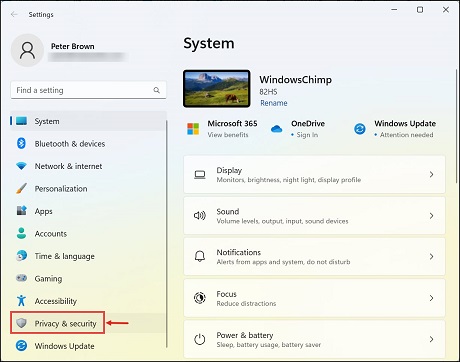
2. Under the Privacy & security settings click on
For developers.
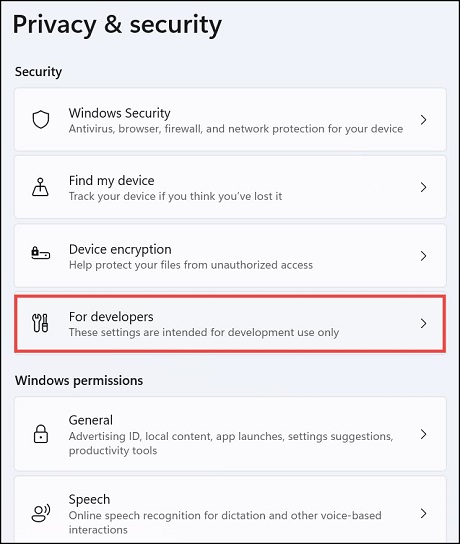
3. Toggle the button to turn ON the
Developer Mode.
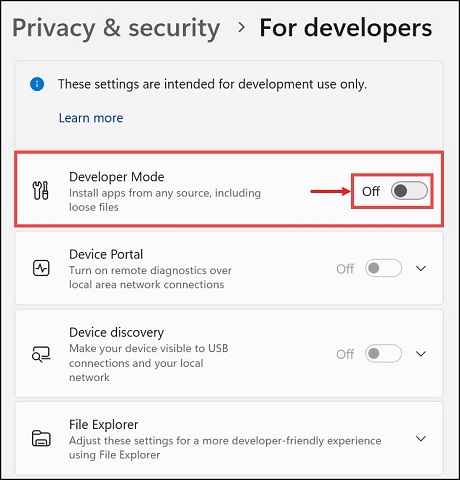
4. Click
Yes on the prompt pop-up to enable the Windows 11 Developer Mode.
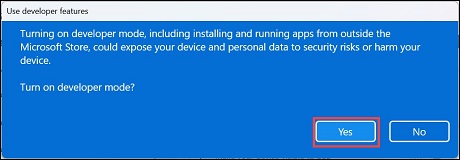 Disable Driver Signature Enforcement
Now that you have enabled the Developer Mode, you need to disable the Driver Signature Enforcement. This will allow you to install unsigned drivers on your computer.
To do that, follow these instructions:
1. On your Windows 11 system, press and hold the
Shift key and then click on
Restart.
2. The system will restart with some advanced options. Select
Troubleshoot from options.
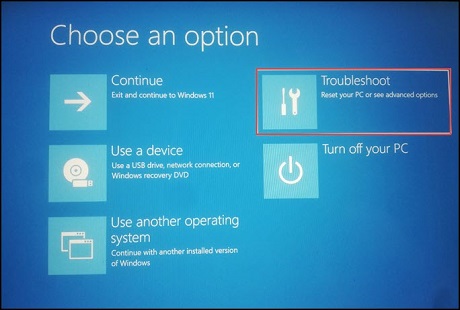
3. Next under Troubleshoot, select
Advanced options.
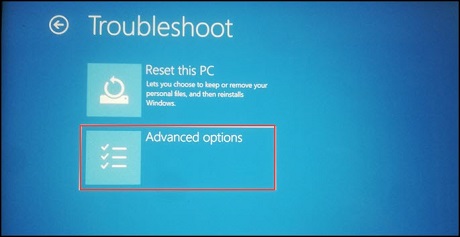
4. On the next window, choose
Startup Settings.
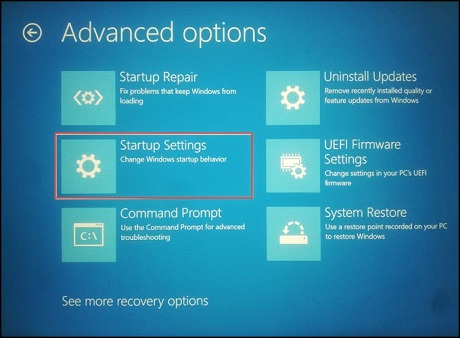
5. Now click on the
Restart button.
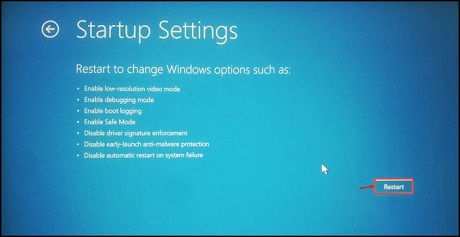
6. Finally,
press F7 to
Disable driver signature enforcement.
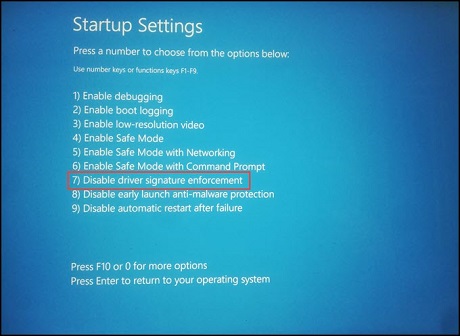
7. Your system will be restarted with the applied settings.
Update Sound DriverAfter you have successfully disabled the Driver Signature Enforcement, you need to update your sound driver.
Before beginning the steps to update the sound driver in Windows 11, make sure to extract the file that you have downloaded in the first step. Also, extract the driver files inside the folder.
To update your sound driver:
1. Right-click on the start button and select
Device Manager from the list.
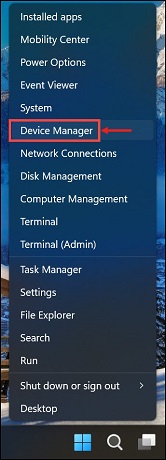
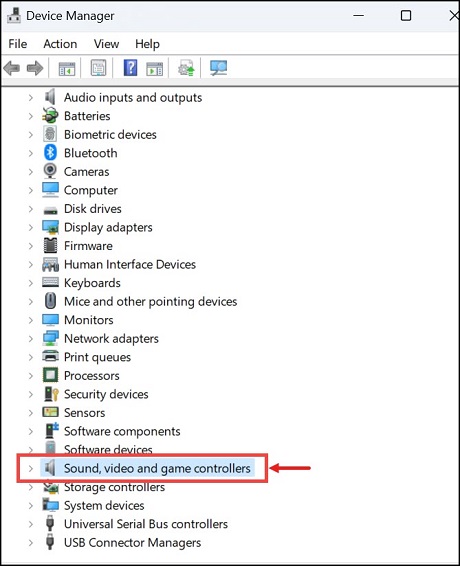
2. Expand the
Sound,
video,
and game controllers.
3. Right-click on
Realtek Audio and then select
Update driver.
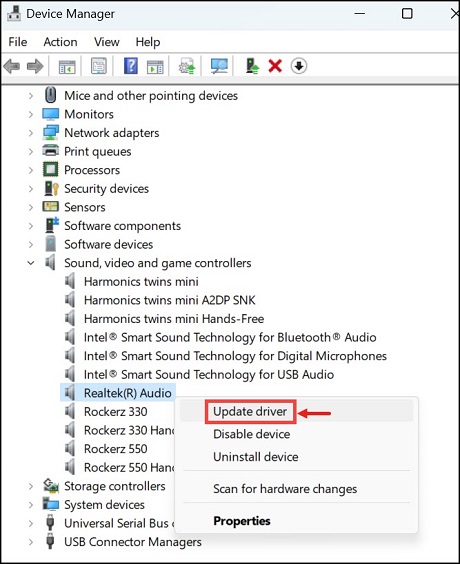
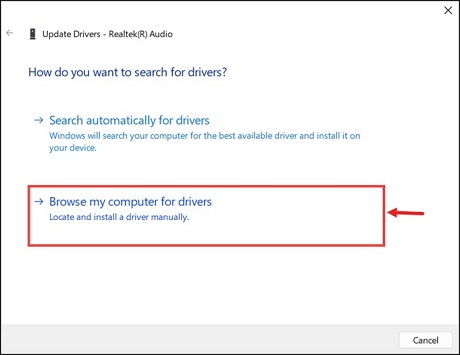
4. In the next window, choose
Browser my computer for drivers.
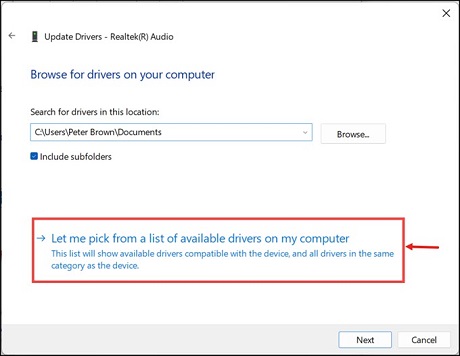
5. Next click on the
Let me pick from a list of available drivers on my computer.
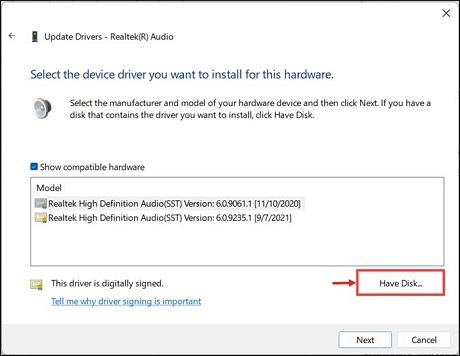
6. On the next window, click on the
Have Disk button.
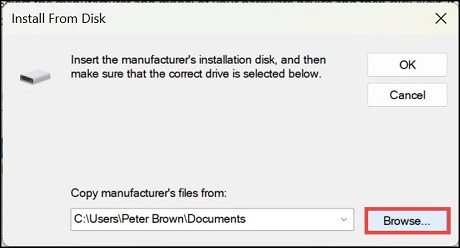
7. Next, click on
Browse and choose the location where you have extracted the files you have downloaded in the first step.
8. Select the
hdaudio.inf file and then click
Open and then click
OK.
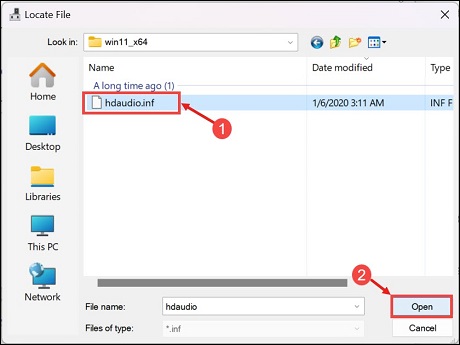
9. On the next window, click
Next.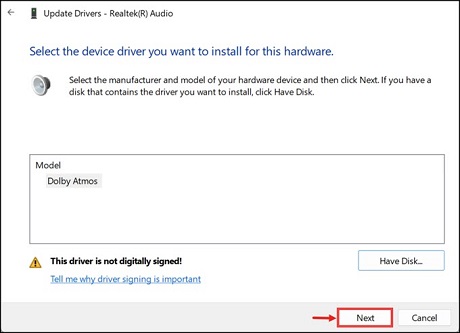
10. Ignore the Update Driver Warning and select
Yes.
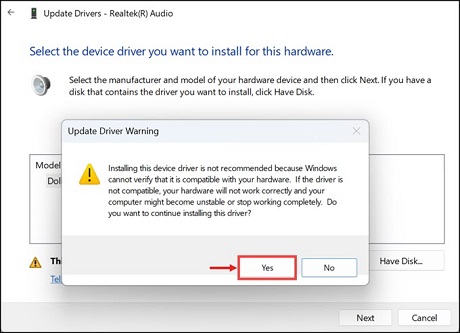
11. The Dolby Atmos driver will be installed.

Restart the system to make the new driver effective.
Install Dolby Atmos AppAfter completing the above steps, now it’s time to install the Dolby Atmos app on your system.
1. Go to the folder where you have extracted the Dolby Atmos app installation files.
2. Open the
app folder.
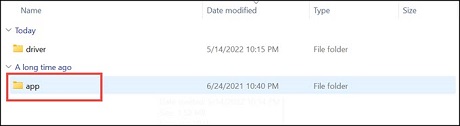
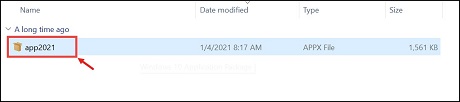
3. Next click on the
app2021 file to launch the Dolby Atmos installer.
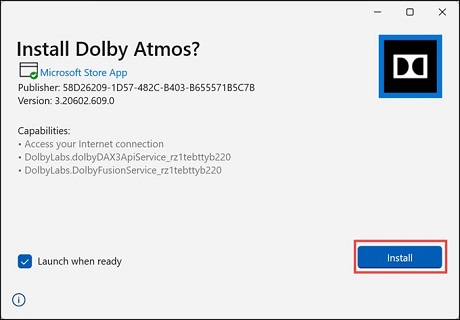
4. Click on the
Install button to begin the installation.
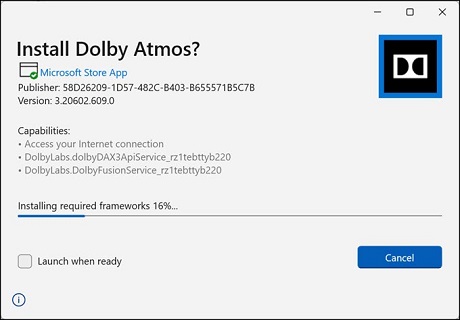
5. The Dolby Atmos will begin the installation.
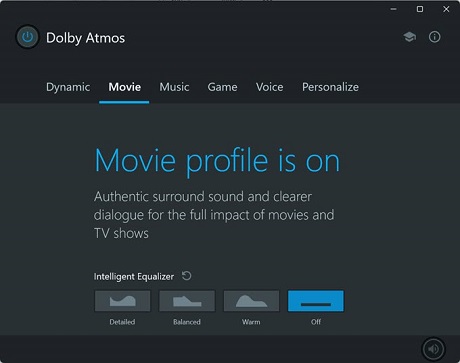
6. Finally, after a few seconds the app will be installed and ready to use. Click on the
Launch button.
7. Configure the settings as per your choice.
How to Get Dolby Atmos on Windows 11 using Microsoft Store?
Dolby Atomos is also available on Microsoft Store, but you have to pay to use it.
If you want to get Dolby Atmos App from Microsoft Store, then follow the steps given below:
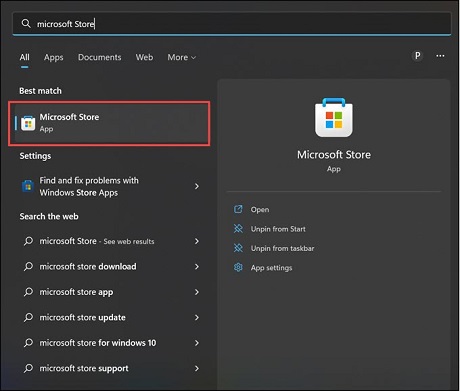
1. First of all, open the Microsoft Store on your Windows 11 system.
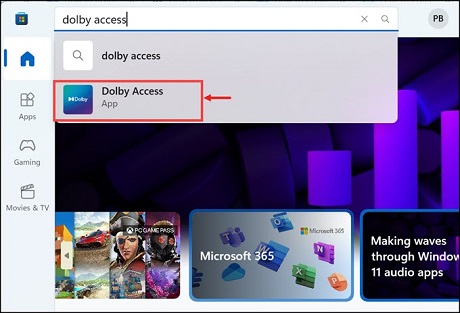
2. In the search bar, type “
Dolby Access” and click on its icon to launch.
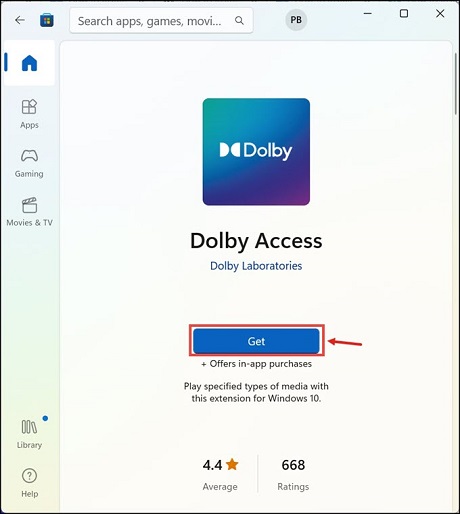
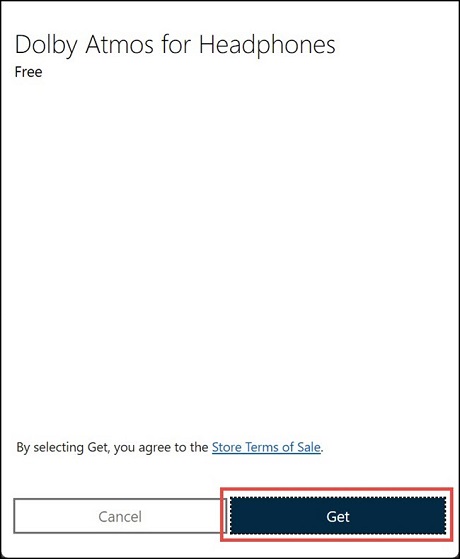
3. Click on the
Get button to download and install the app.
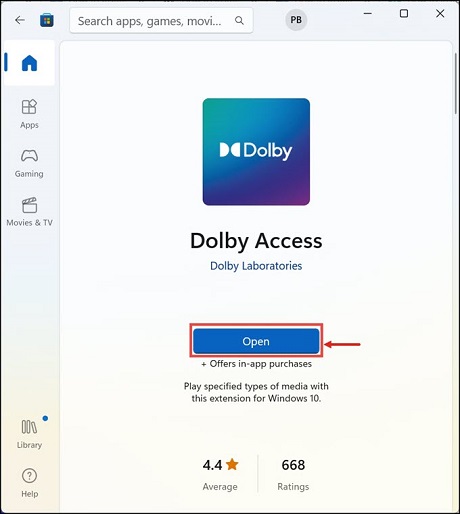
4. After installation, launch the app.
5. On the Dolby Access window, click on
Get Started.
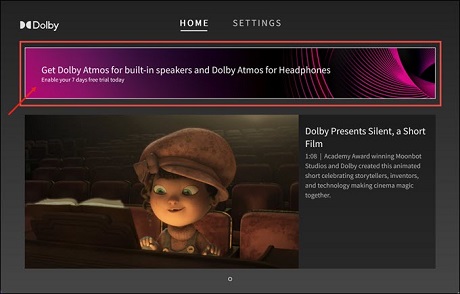
6. Click on Get Dolby Atmos for built-in speakers and headphones.
7. Finally, click on
Experience Now to get started.
Is it worth installing Dolby Atmos on your Windows 11 computer?
Dolby Atmos is a great addition to any Windows 11 computer, especially if you are a gamer or movie enthusiast. The app provides a great audio experience with its immersive sound and detailed settings.
Although the app is not free, it is definitely worth the price. And if you don’t want to spend on the application, you can follow the steps listed in this post to get it for free.
Summing Up
Dolby Atmos is an amazing audio technology that can provide a truly immersive sound experience. However, it can be quite expensive to purchase and set up the necessary hardware. In this article, we’ve shown you how to get Dolby Atmos Sound for free on your Windows 11 computer. If you want, you can also purchase it from Microsoft Store.
We hope you’ve found this guide helpful and that you can now enjoy the benefits of Dolby Atmos without having to spend a lot of money.
What is Dolby Atmos?Dolby Atmos is a technology that creates an immersive sound experience in which sounds can be heard from all directions, including above and below.
How much does it cost to get Dolby Atmos for my Windows 11 computer?If you want to purchase Dolby Atmos from Microsoft Store, it will cost you $14.99. However, you can also follow the steps in this guide to get it for free.
Is Dolby Atmos worth it?Yes, Dolby Atmos is definitely worth the price. It is a great addition to any Windows 11 computer, especially if you are a gamer or movie enthusiast. The app provides a great audio experience with its immersive sound and detailed settings.
source
