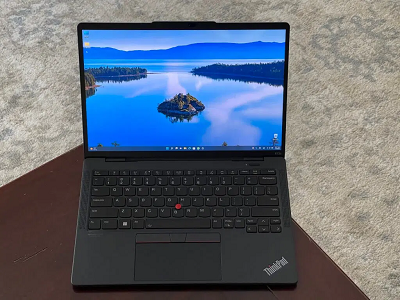
Here's how to tell if your Windows 10 and Windows 11 PC have eSIM support.
1. Open
Settings2. Go to
Network & internet >
Cellular3a. On Windows 10 (Version 1703 or later): Under
Cellular, if you see a
Manage eSIM profiles setting, then your PC has an eSIM.
3b. On Windows 11: Under
Cellular, look for the
Use this SIM for cellular data with a dropdown menu. Click the dropdown menu to see if an eSIM is listed as an option. If it's listed, your PC has eSIM.
An eSIM allows you to connect to the internet using a cellular data connection. An eSIM profile is software you must download to your device to access the carrier's mobile network.
But eSIM profiles and eSIMs are not new technologies,
Windows 10 (and Windows 11) has had eSIM support for quite some time.
Does my device have eSIM support?If you want to see if your device has eSIM, here's what you need to do.
1. Open
Settings2. Go to
Network & Internet >
Cellular3a. On Windows 10 (Version 1703 or later): Under
Cellular, if you see a
Manage eSIM profiles setting, then your PC has an eSIM.
3b. On Windows 11: Under
Cellular, look for the
Use this SIM for cellular data with a dropdown menu. Click the dropdown menu to see if an eSIM is an option; eSIM may also be labeled as SIM 1 or SIM 2.
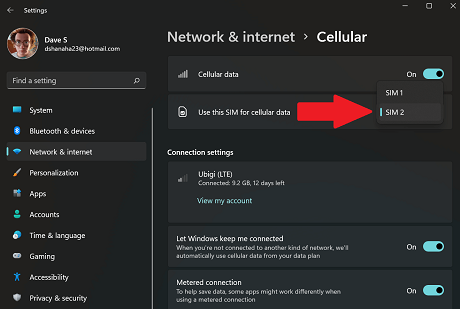
Some devices, like the
Lenovo ThinkPad x13s, support both an eSIM and using a physical SIM card.
Some people may be wondering if their device has
eSIM support on their device, but you can also check
cellular settings in Windows. Another clear indication that your device doesn't have eSIM support is that you don't even have a "Cellular" option available in Settings.
source

