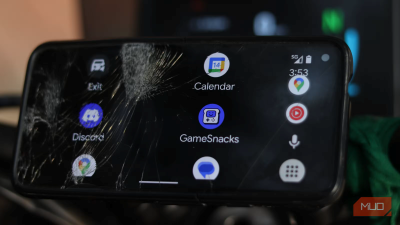
Do you also stare at your car's aging touchscreen, dreaming of Google Maps, Spotify, and hands-free calling all integrated into one sleek system? If your car didn't come with Android Auto or Apple CarPlay, getting an aftermarket head unit is an option, but an expensive one.
Aftermarket Android Auto head units can range from anywhere between $300 to $1,200, plus the cost it'd take for installation. You could use an app that reads notifications aloud when driving, but that's not nearly as useful as Android Auto. Thankfully, that spare phone you've got lying around
might just do the trick.
Your old Android can pull double duty as an Android Auto displayA simple mount and the right app turn it into a surprisingly capable head unit
As mentioned before, aftermarket head units can vary significantly in price, and just because you're spending a ton on one doesn't necessarily mean you're getting a great head unit. And that's before installation costs, which can tack on another couple of hundred if you're not handy. Then there's the potential frustration of yanking out your factory stereo, dealing with custom wiring harnesses, and hoping everything plays nicely together.
The solution? Try using the
Headunit Reloaded Emulator (HUR) app first. It's
a $5 app that turns your old Android phone or tablet into a full-featured Android Auto head unit. If you don't already have one, you can pick up a cheap, second-hand tablet on the secondhand market for well below $100. There's no installation to worry about and no cabling to deal with.
Using HUR is refreshingly straightforward. Once you've got the app installed on your spare Android device, follow these steps to launch an Android Auto server on your main phone.
1. Open the settings app and head over to Android Auto.
2. In the Android Auto settings, scroll down to see the Version. Tap on it eight times to enable developer mode.
3. You may be asked for a permission prompt. Tap Yes to proceed.
4. Tap the three vertical dots in the top-right corner, then tap Start head unit server.
5. Start the personal hotspot and connect your spare Android device to your main phone's hotspot.
 click image ▲ to enlarge
Android Auto should open up automatically on the HUR app by this point. If you don't want to use a personal hotspot, you can also connect the two devices via USB and get the same functionality. Keep in mind that the head unit server must be running at any time you're connecting the two devices for HUR to work. There's an accompanying app called Wi-Fi Launcher that automates the process of starting the head unit server and connecting the two phones via Wi-Fi. However, it requires extra configuration and isn't very reliable. Besides, the server keeps running once you enable it, so you're good until you manually turn it off.
You still get the full feature set—but expect a few quirksIt's not perfect, but it's pretty close
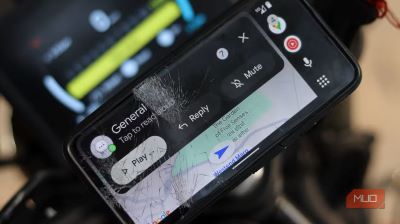
Once you've got it running, the app emulates what a real car head unit would do. This means you get navigation through Google Maps or your navigation app of choice, music from streaming services, hands-free calling and messaging, voice control, and all the apps that a regular Android Auto head unit can run. You can even customize the launcher to show apps in a specific order the Android Auto settings on your phone. Some of these apps can make Android Auto 10x more useful.
There's little to no tweaking needed in the HUR app itself to get it to work. I was able to get the app working on my old Pixel 4a instantly with no tweaks needed. Although I did have to experiment with the app settings to get the scaling just right. HUR lets you customize the DPI and resolution, adjust day/night modes automatically, and play around with settings that usual Android Auto head units lock you out of.
But there are trade-offs. First, it requires two devices—your phone and another tablet or phone working in unison. That means you have to think about mounting, power, and whether your car's setup can handle two chargers. If you wanted just one cable and one screen, this isn't for you.
Audio quality is another consideration. Android Auto already works over Bluetooth, so pairing your spare device to your car's stereo over Bluetooth and then pairing another phone over Wi-Fi can degrade audio quality. I used the HUR app to play music inside my helmet intercom, and while the audio quality wasn't bad, it certainly wasn't as clean as the direct connection between my main phone and helmet speakers.
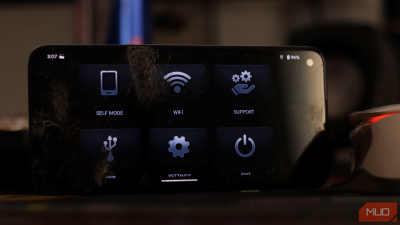
Last but not least, the user experience can be finicky. An integrated head unit feels seamless. HUR requires a bit more manual setup. You might need to manually enable your phone's hotspot and head unit server, manage two devices' battery life, and deal with the occasional connectivity hiccups. The app is also in beta, so expect random bugs and glitches from time to time. It's not a deal-breaker, but it's not exactly plug-and-play either.
Is this DIY setup actually worth it?It does a lot, but not everything
If you've got a spare phone or tablet gathering dust in a drawer, or you're just not ready to commit a significant amount of money to a car head unit, the HUR app is a good alternative. It lets you add modern functionality to older cars that may or may not have a compatible aftermarket head unit available.
Is it perfect? No. And it won't replace a $1,000 premium head unit with wireless connectivity and seamless installation either. But it will deliver 95% of the functionality for a quarter of the price, and that's pretty compelling.
Your old Android devices are more capable than you give them credit for. In this case, they might not give you the best experience, but they can get you pretty close for practically free.
source
