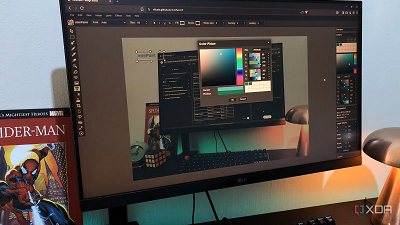
Even though I’ve already built a pretty solid open-source graphics stack at this point, I’m always on the lookout for new tools or hidden gems. That’s exactly how I discovered some of my favorites, like Photopea and PhotoDemon. Recently, I came across a tool called miniPaint. It’s a free, open-source, lightweight image and graphics editor that runs in your browser, and it’s self-hostable too.
Although it’s not a match for Photoshop's capabilities, it’s a great option for anyone who needs a lightweight option with a bit more data control. And it covers most of the use cases I used to rely on Photoshop for, anyway, so it can almost be a full replacement.
What exactly is miniPaint?It’s not just a painting tool, but an image editor too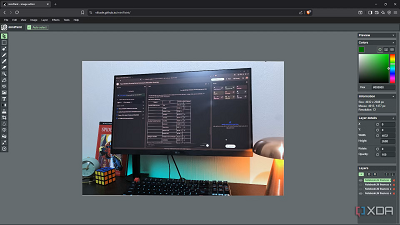
Despite having the word “paint” in its name, miniPaint by Viliusle is both a painting and image editing tool. It’s a free, open-source editor that runs entirely in your browser, and unlike many online editors that require accounts or cloud storage, miniPaint doesn’t send your data out - everything is processed directly in the browser. While you need a connection to load the app initially, you can actually use it offline because it uses service workers to cache data and assets in your browser, allowing you to keep working. This is already a major win in my books because both web access and offline functionality makes a tool more accessible.
miniPaint was created as a lightweight alternative to heavier desktop editors like Photoshop, using layers, brushes, filters, and typical image manipulation tools that most graphics workflows require. It supports a broad range of popular raster formats, including PNG, JPG, BMP, WebP, and TIFF, letting you save and export in multiple formats. It even lets you export layer data in JSON for future edits.
Overall, miniPaint strikes a good balance between simplicity and depth. It has essential features like layer-based non-destructive editing, color adjustments, brushes, text, effects, and more, but without overwhelming giant toolsets you rarely use. It’s ideal for creators who need a capable image editor that’s accessible from anywhere, works offline, and doesn’t require your information for an account or subscription. The app gives you everything you need for quick edits, mockups, social media graphics, banners, and everyday graphics work. Plus, you can self-host it.
How it can replace PhotoshopIt’s more capable than it looks on the surface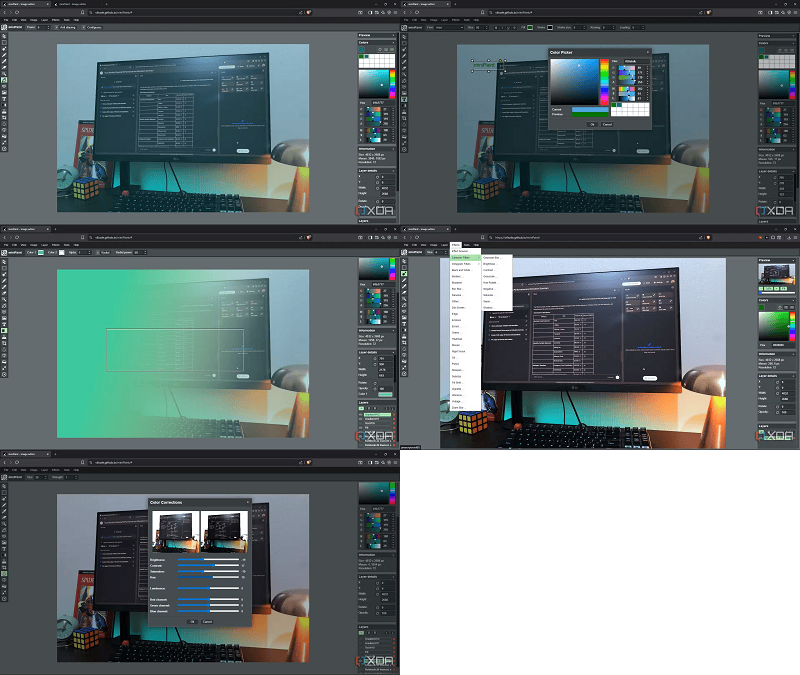
The first tools I wanted to play around with were the Brush and Pencil. They’re pretty stripped-down compared to Photoshop in terms of the adjustable properties. You can select the color, size, opacity, and pressure, but that’s it. This is still decent given many free editors don’t even have a brush tool - you’d be able to paint some masks onto your images or do creative drawings in miniPaint.
The Fill and Gradient tools also caught my eye because I generally like using them for creating overlays on my images. You can get very precise with the color values and gradient placement. Both of them also have adjustable properties like radial strength and opacity. I also quite like the Blur tool - since the wall behind my PC is textured, I like softening it with some type of blur tool or mask if the lighting exaggerates the texture too much, and miniPaint does a good job.
It also comes with a Color Correction tool which I really like - it’s a simple kit but effective, letting me adjust the hues and tones with a preview. The filter selection is more plentiful than I expected. You will find things like box blur, denoise, oil painting, solarize, and there are also Instagram-specific filters. Lastly, there’s a very capable text tool with options for fonts, size, color, stroke, format, kerning, and leading.
miniPaint can’t do everything Photoshop doesIt’s a “mini” tool, after all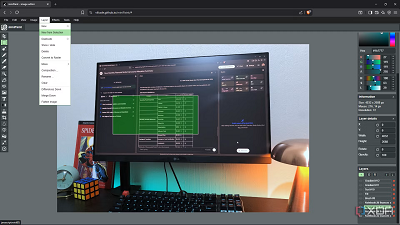
The biggest Photoshop-like feature I’m missing in miniPaint is proper selection tools. You only get a Rectangle selection tool that you have to manually adjust. And the masking system isn’t very smooth either - you can’t right-click to add a mask from selection and have to navigate to the menu bar instead. There’s also no Lasso selection tool for finer selections, which is a major component of creating things like composites.
Being a lighter-weight tool, I didn’t expect it to have smart objects, but it is a nice-to-have for more complex edits, so I’m missing it a bit. It also lacks more advanced typography and is more on par with tools like Canva in terms of the text offerings. Plus, there’s no perspective editing.
Less software, similar resultsminiPaint isn’t a complete replacement for Photoshop, especially considering its lack of proper selection tools. However, it steps up in most other areas. I can create stylish overlays, draw sketches, add unique effects, color correct and color grade, do some basic graphics work with shapes and text, and create design assets. Plus, it’s accessible from any operating system or device with a browser.
 source
